Features
The complete list, grouped by the part of the job it serves. Every plan includes every feature.
Automation and Workflows
Set the path a job follows once: its stages, the tasks in each, which task waits on which, and the proof a task needs before it counts as done. Every new job follows it, and everyone can see whose move it is.
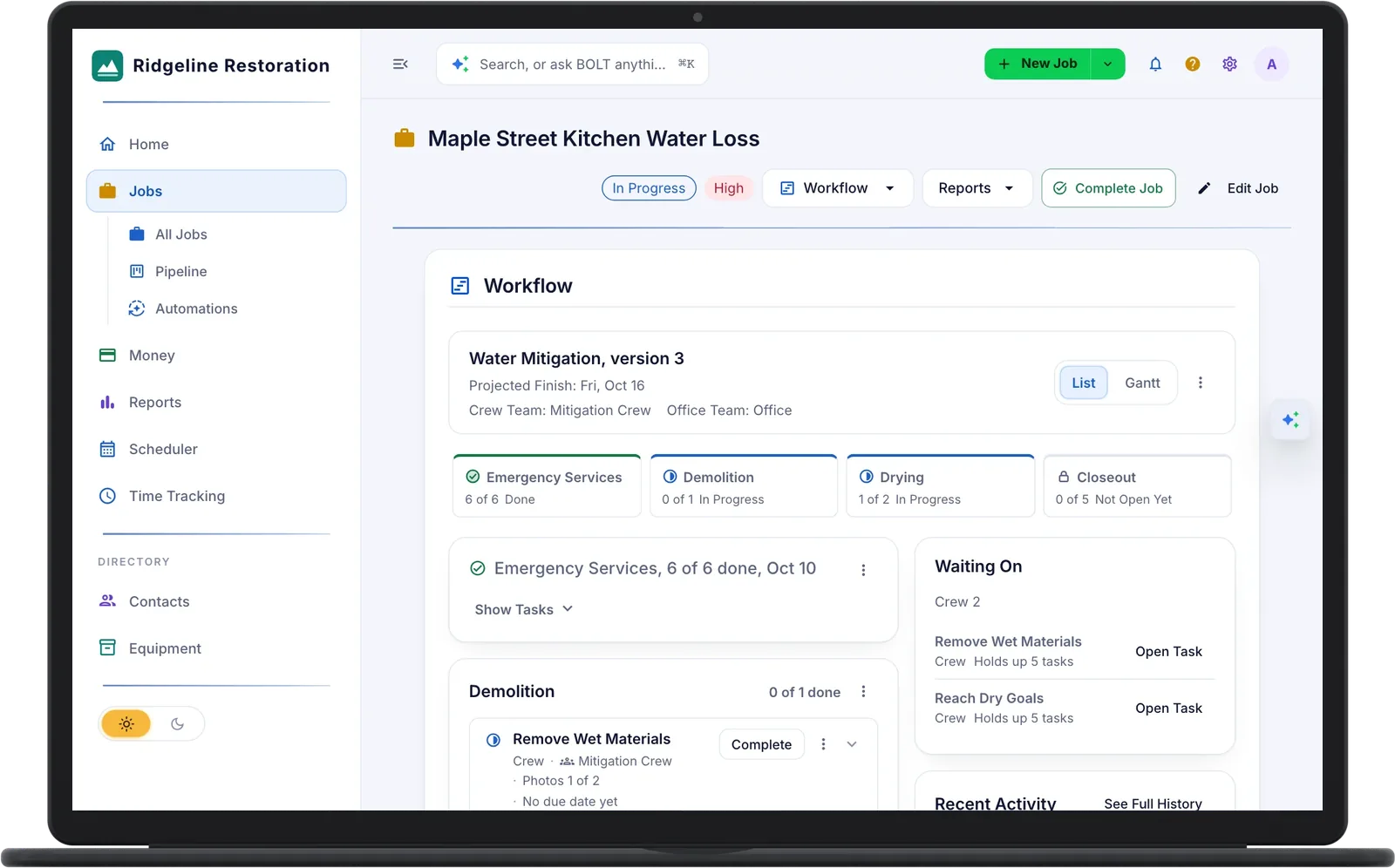
- Emergency Services6 of 6 done, DoneOpens when the workflow starts
- Demolition0 of 1 done, In ProgressOpens when the workflow starts
- Drying1 of 2 done, In ProgressOpens when Emergency Services finishes
- Closeout0 of 5 done, Not Open YetOpens when Demolition and Drying finish
Every task says where it stands:
- Ready
- In Progress
- Waiting
- On Hold
- Done
Waiting is normal, not an error. A waiting task opens by itself once what it waits on is done, and it names whose move it is: crew, office, customer, or carrier.
Pick a default workflow for each job type, and a new job starts it the moment it is created. Stages can run side by side, and a stage opens once the stages it waits on are done.
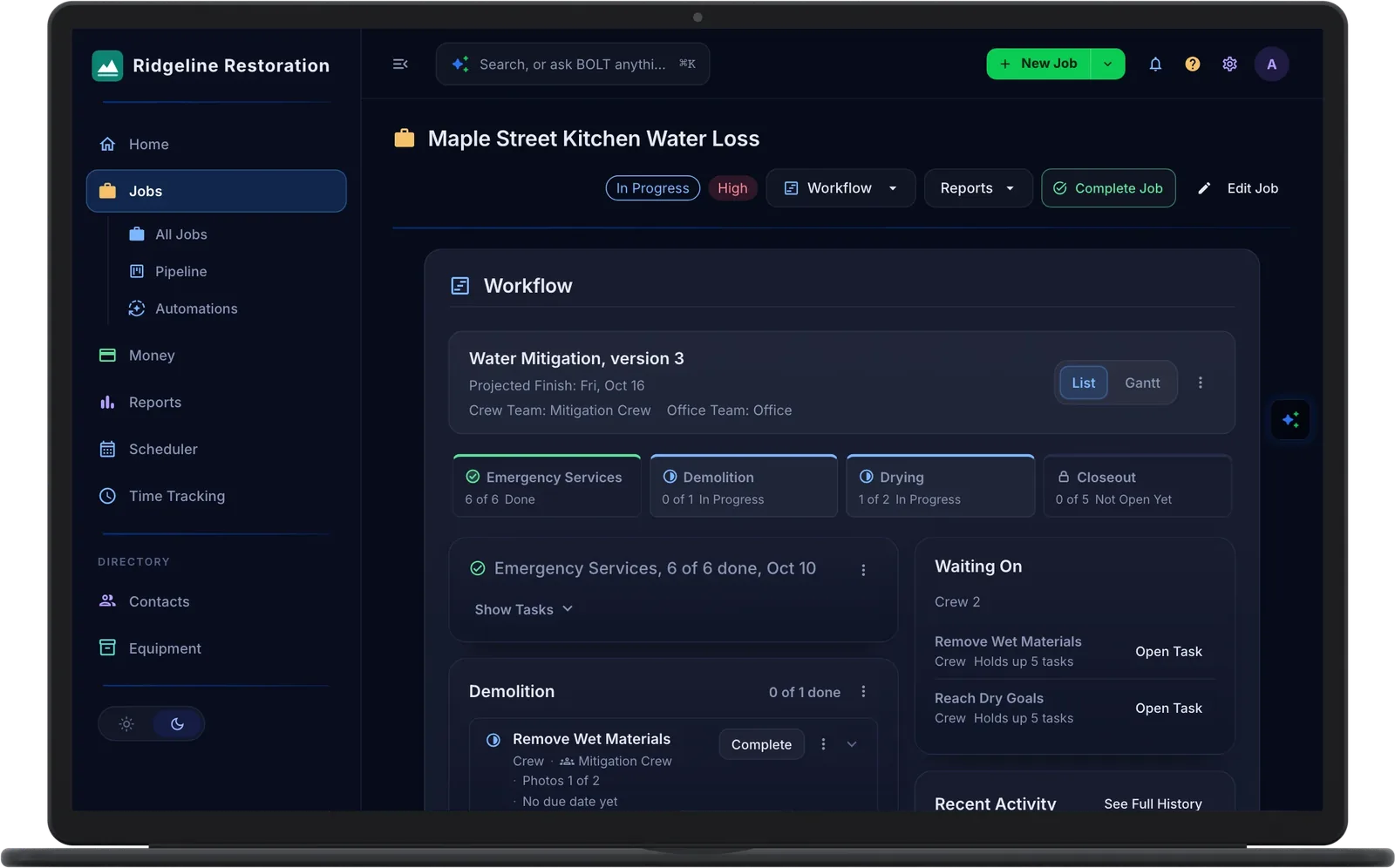
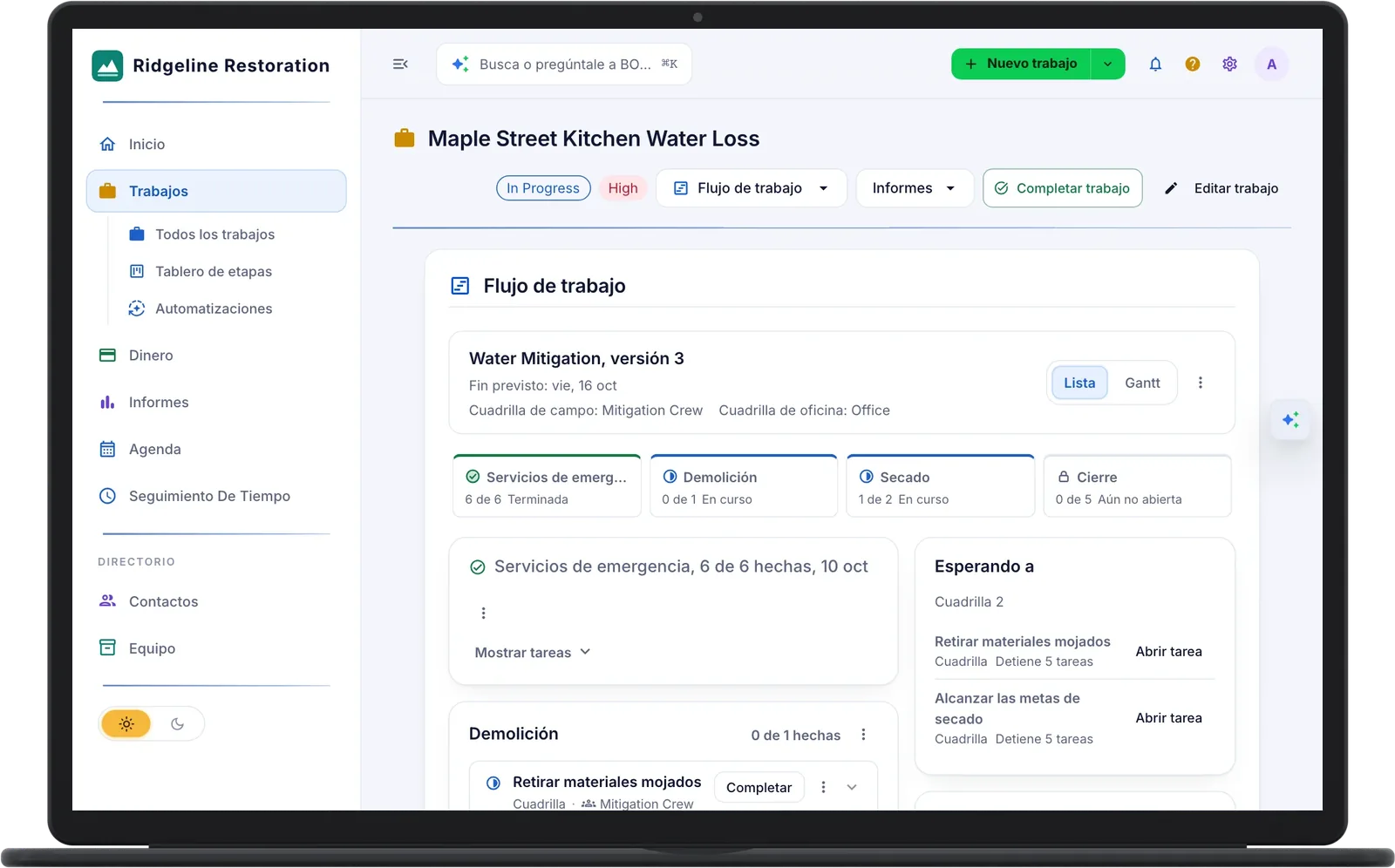
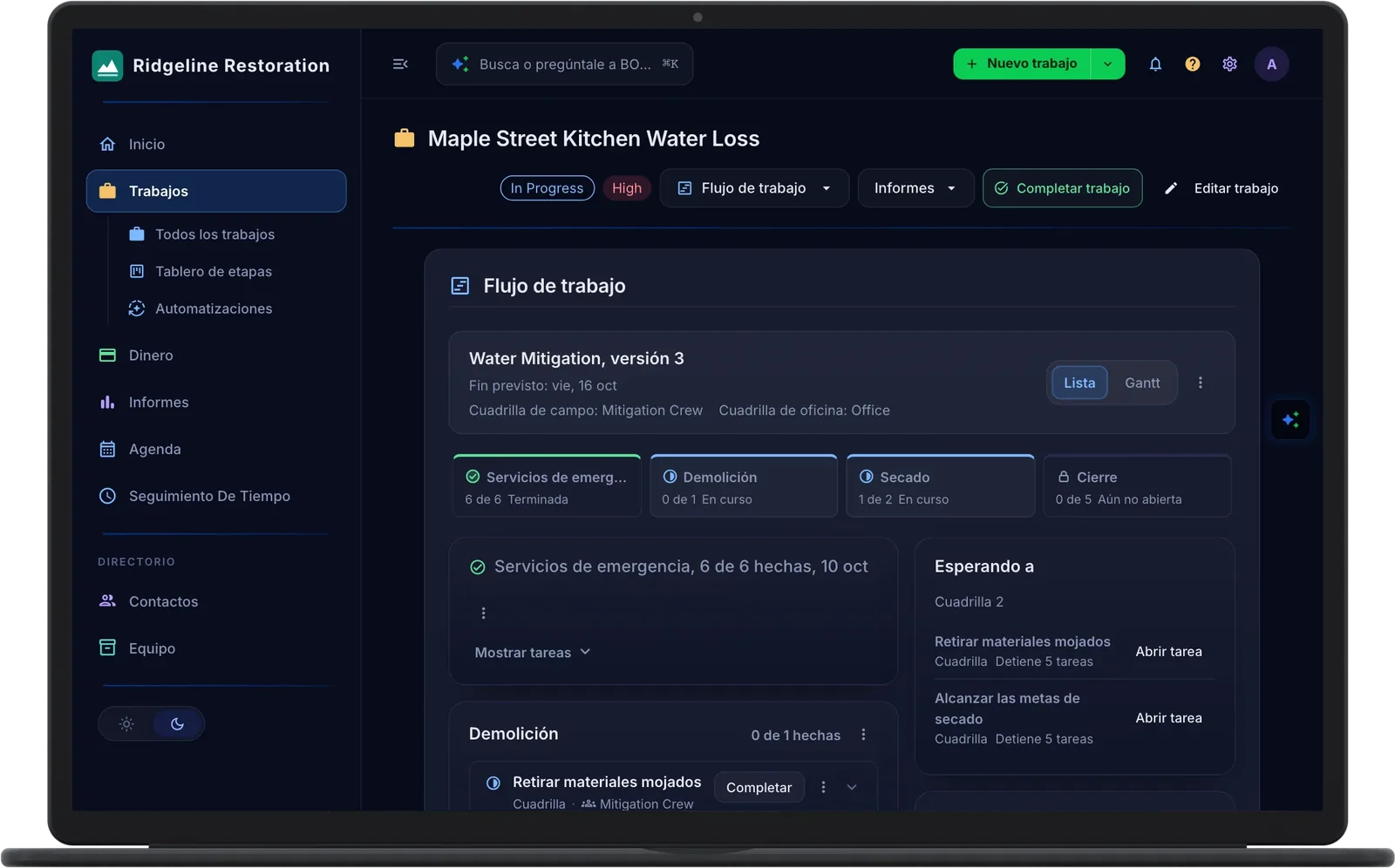
Maple Street started Water Mitigation when it was created. Demolition and Drying are under way together, and the Waiting On card names the two crew tasks that hold up Closeout.
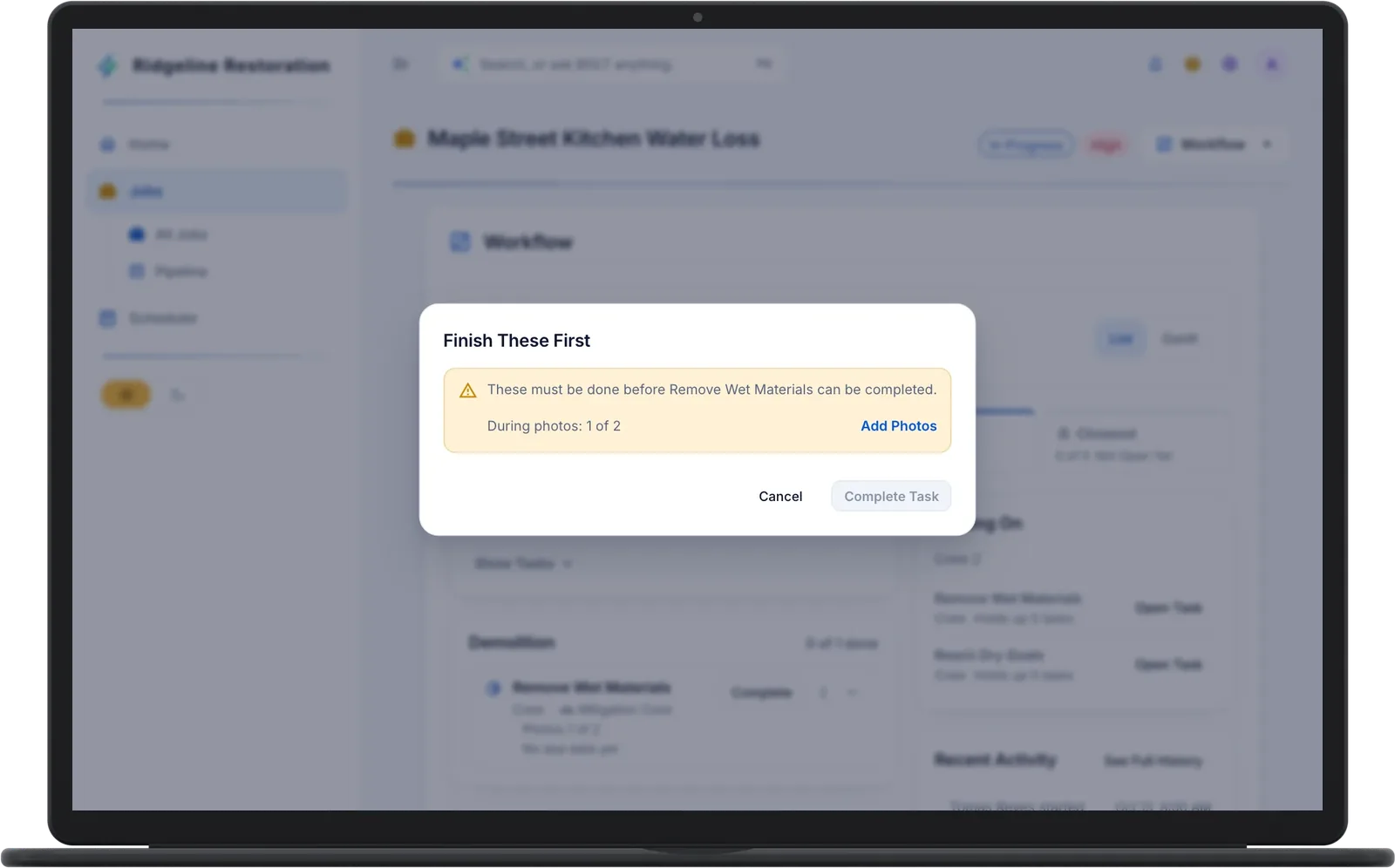
A task can ask for photos in each room, a short form, a signed document, a protocol started or closed, finished drying, or a claim milestone. When something is missing, Finish These First says what and links straight to the fix. Overriding takes permission and a written reason, kept in the job's history.
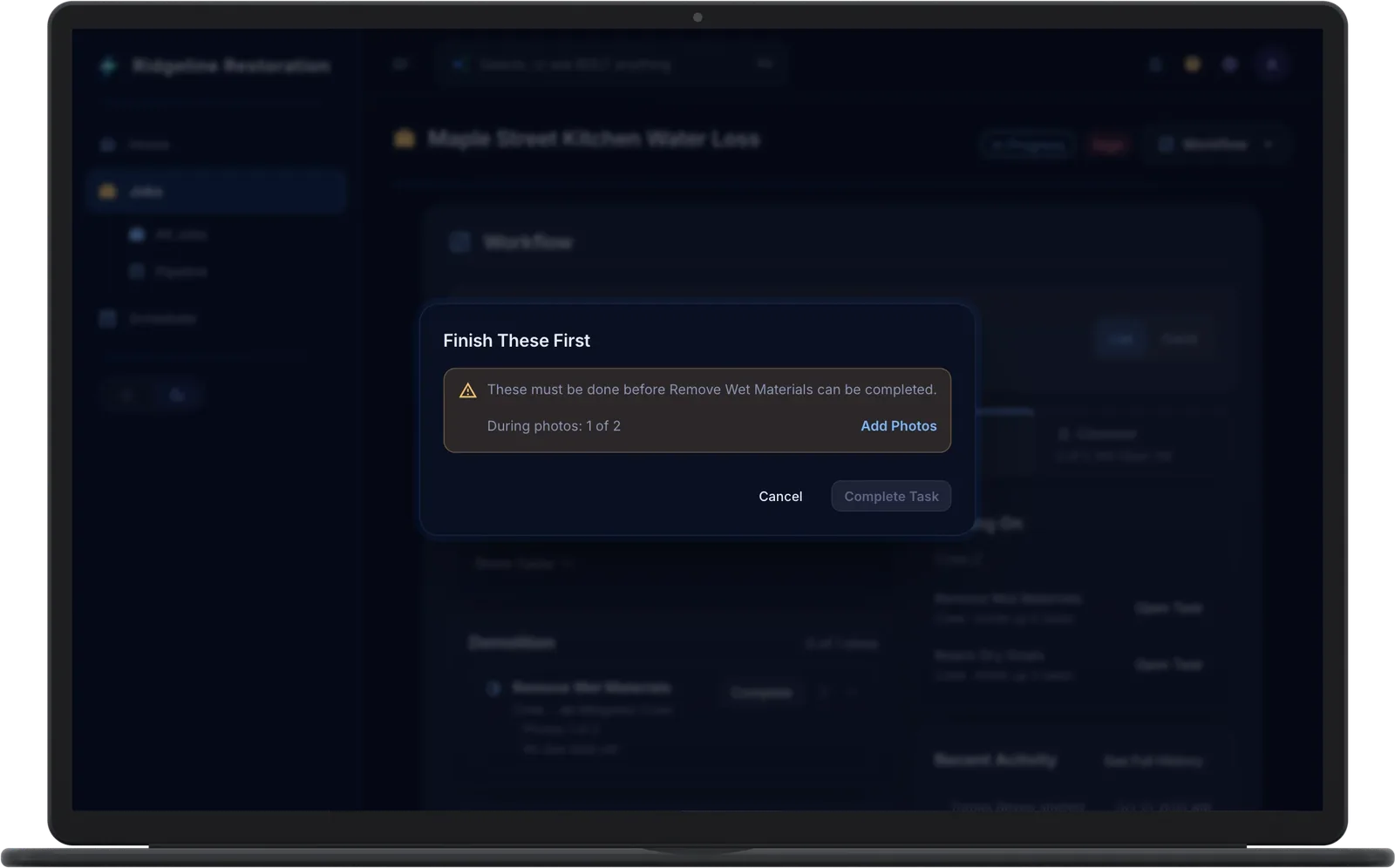
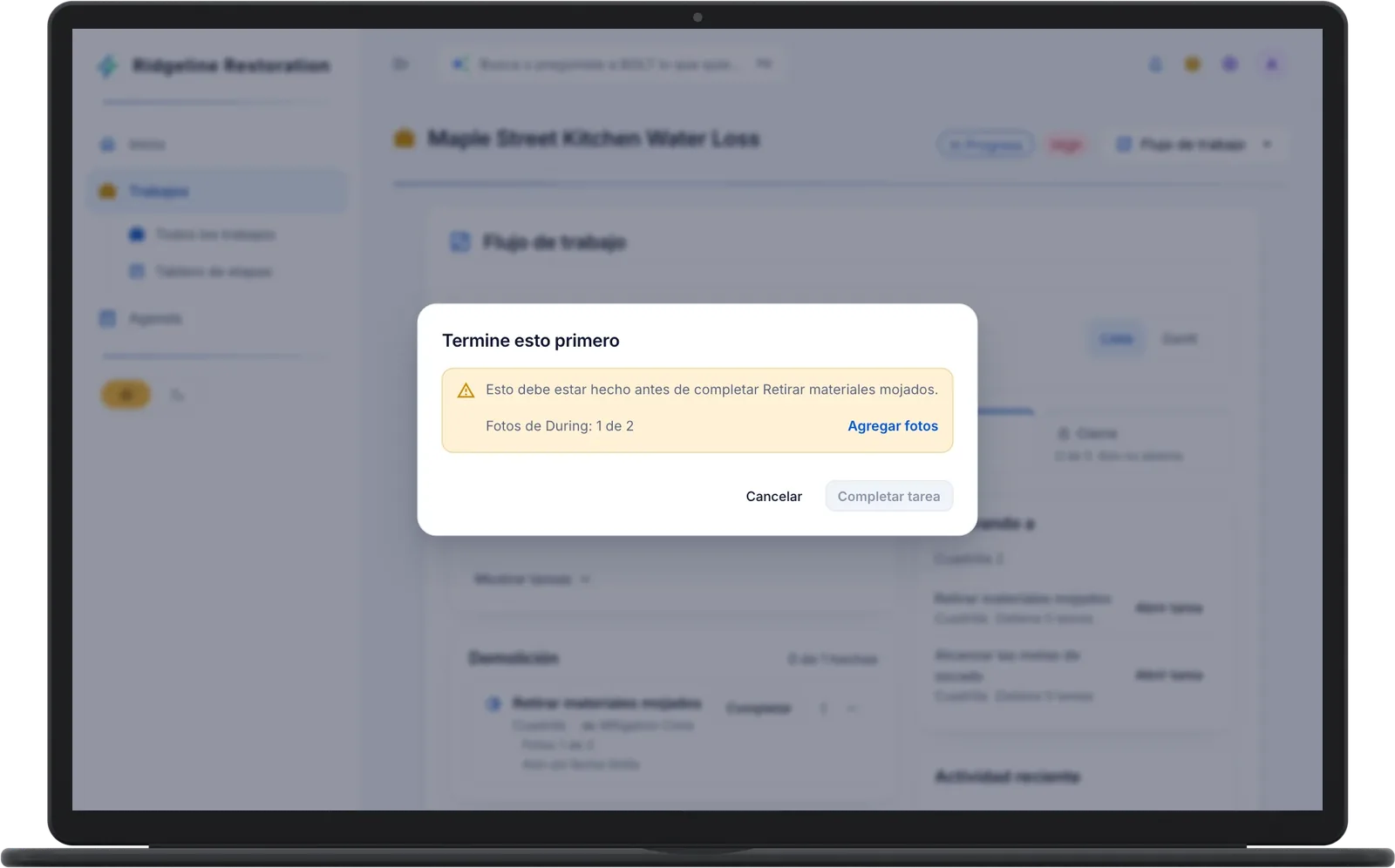
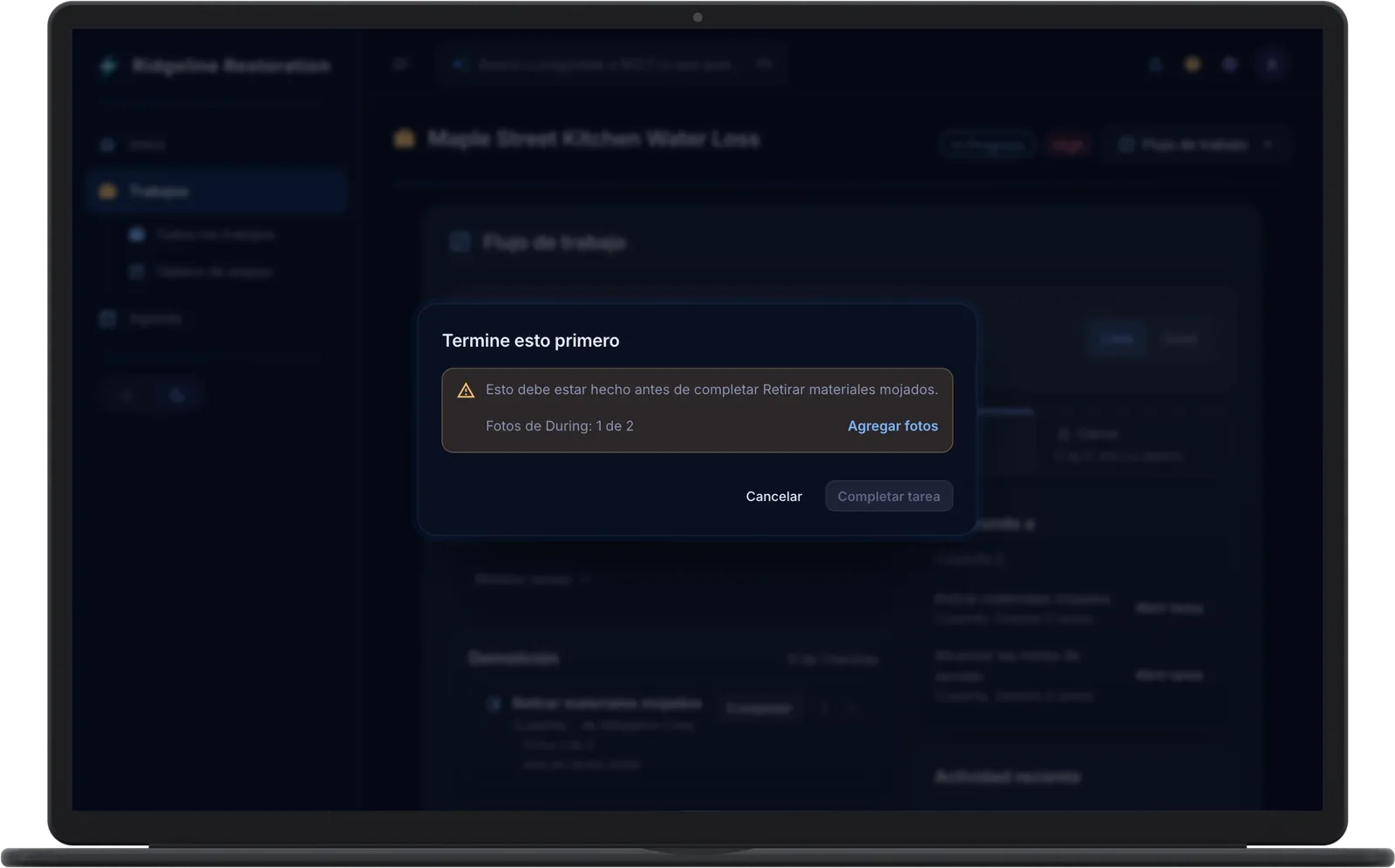
Remove Wet Materials needs two during photos and has one. Add Photos opens the job's photos with the category already chosen, and Complete Task turns on once the second photo is in.
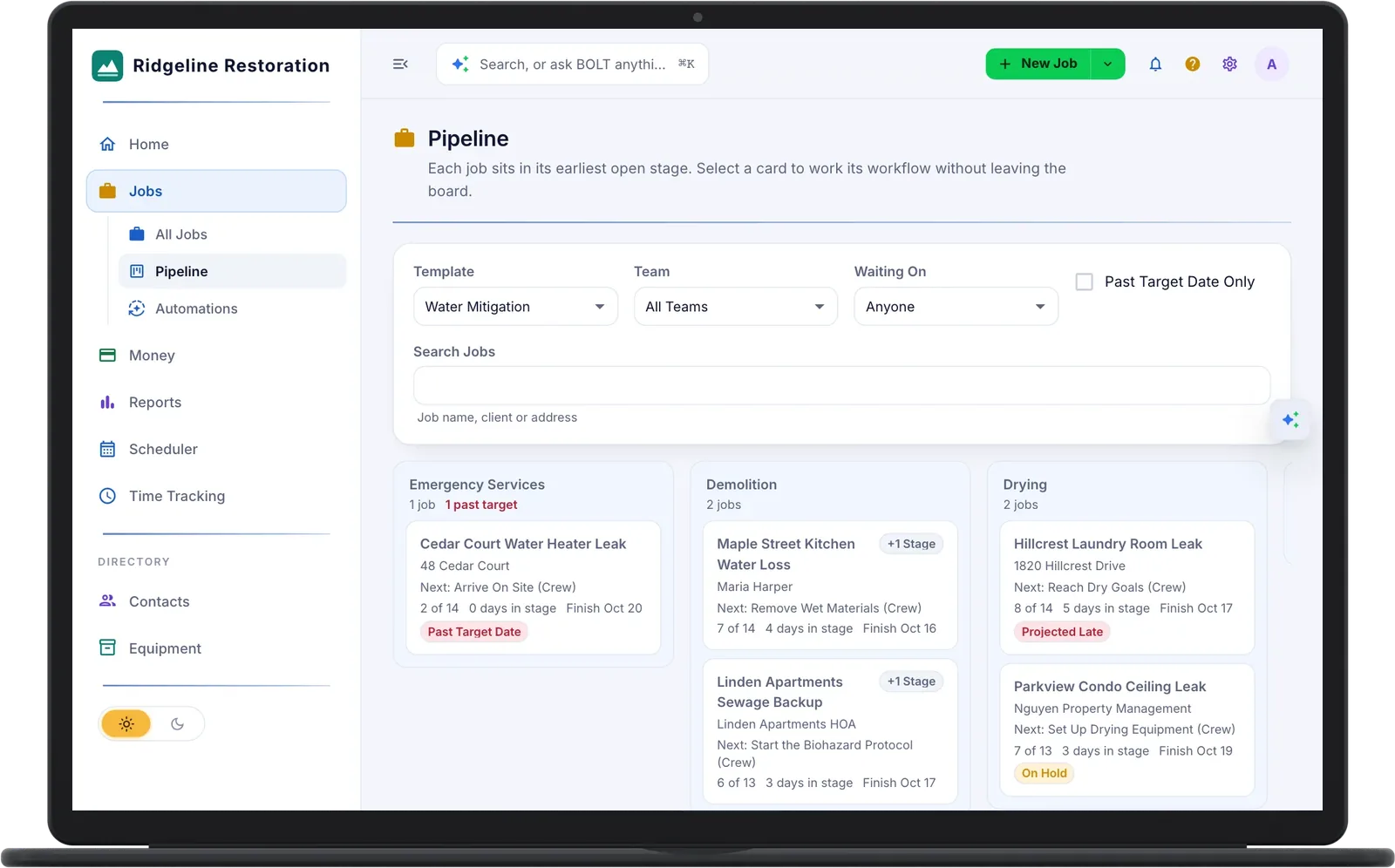
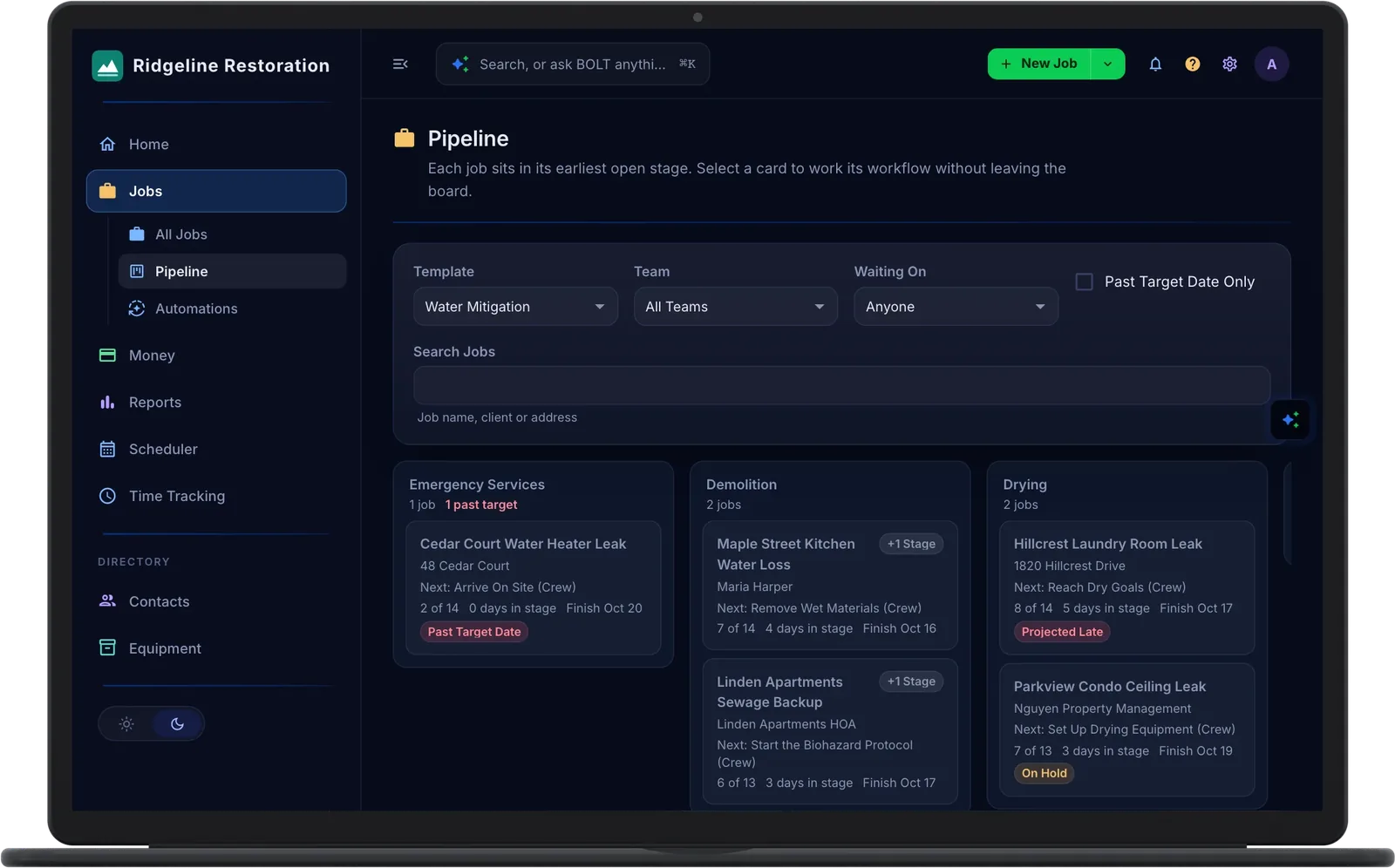
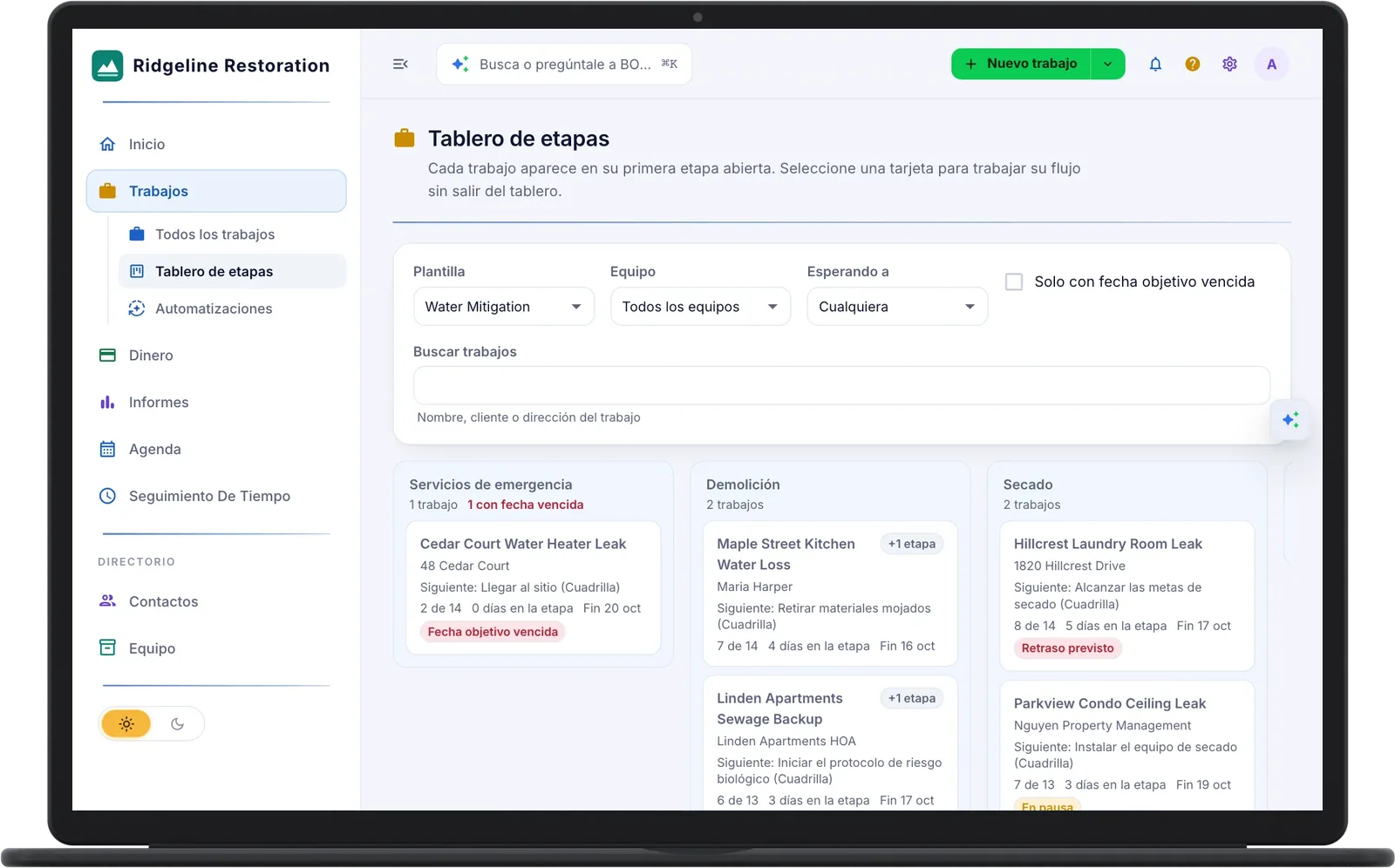
Pipeline puts each job in the stage it is in, with the next task, whose move it is, the days in the stage, and the projected finish. Filter by team, or by who the work is waiting on, such as the carrier.
Cedar Court is past its target date, Hillcrest is projected to run late, and Parkview is on hold. Click any card to work its workflow without leaving the board.
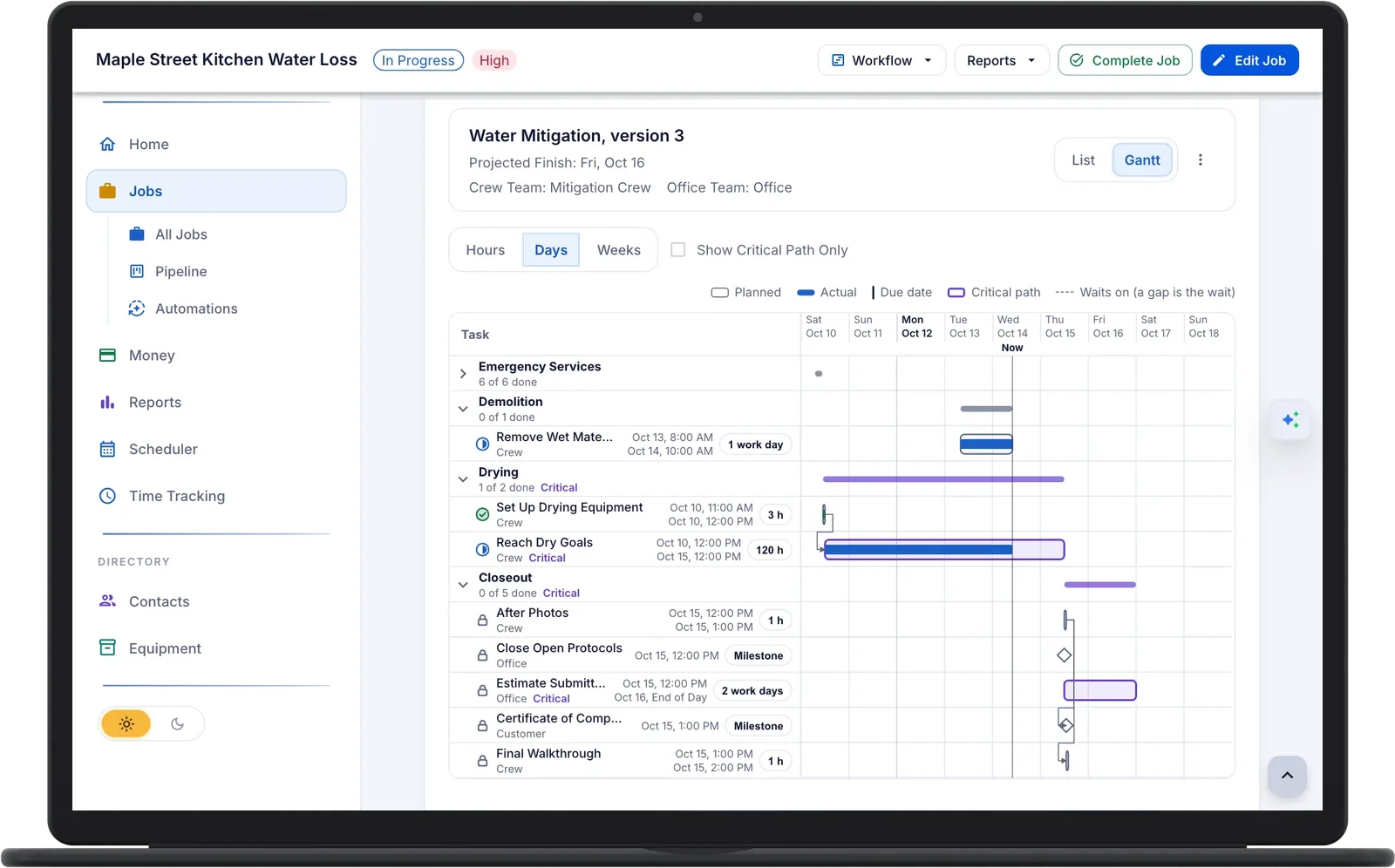
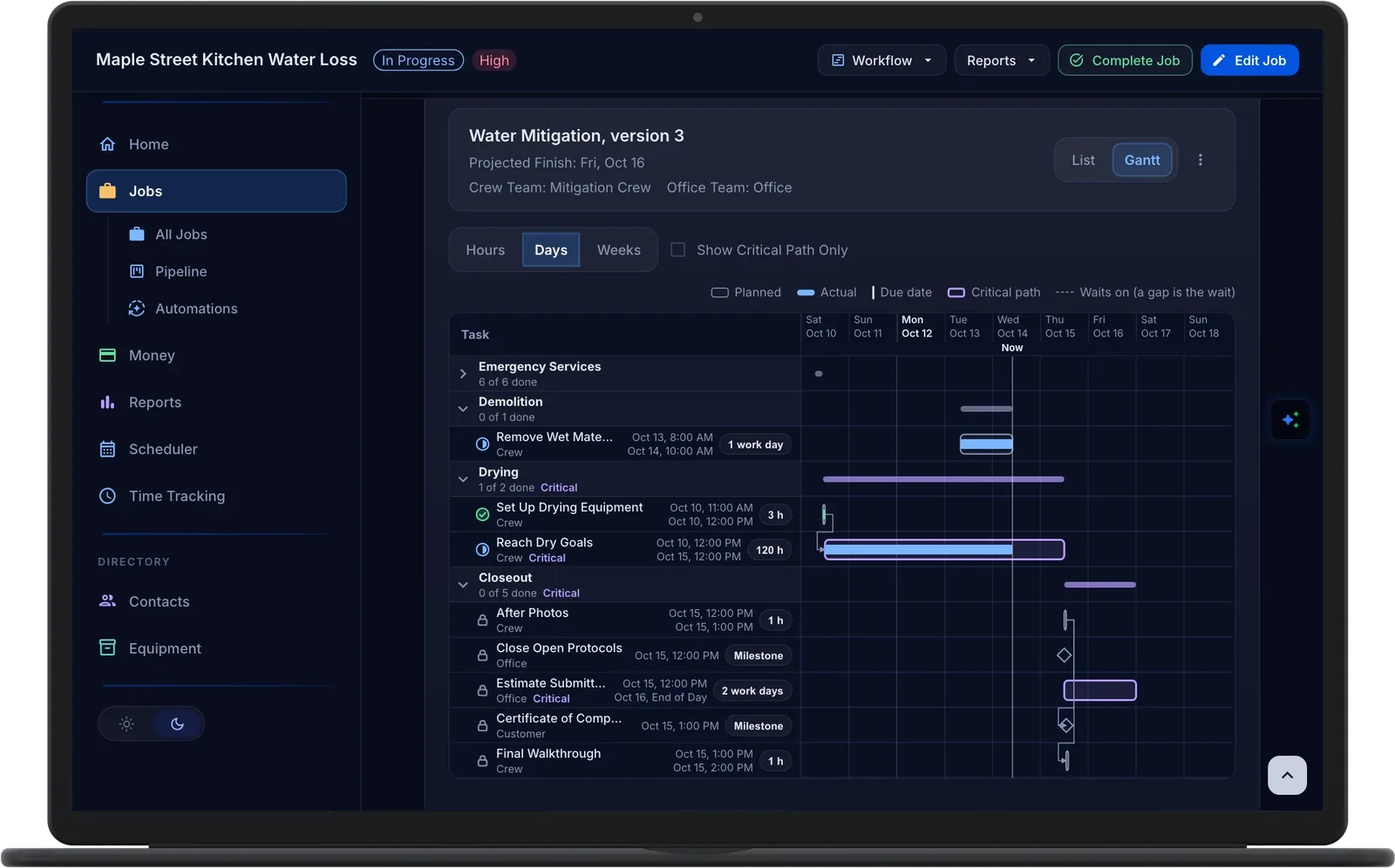
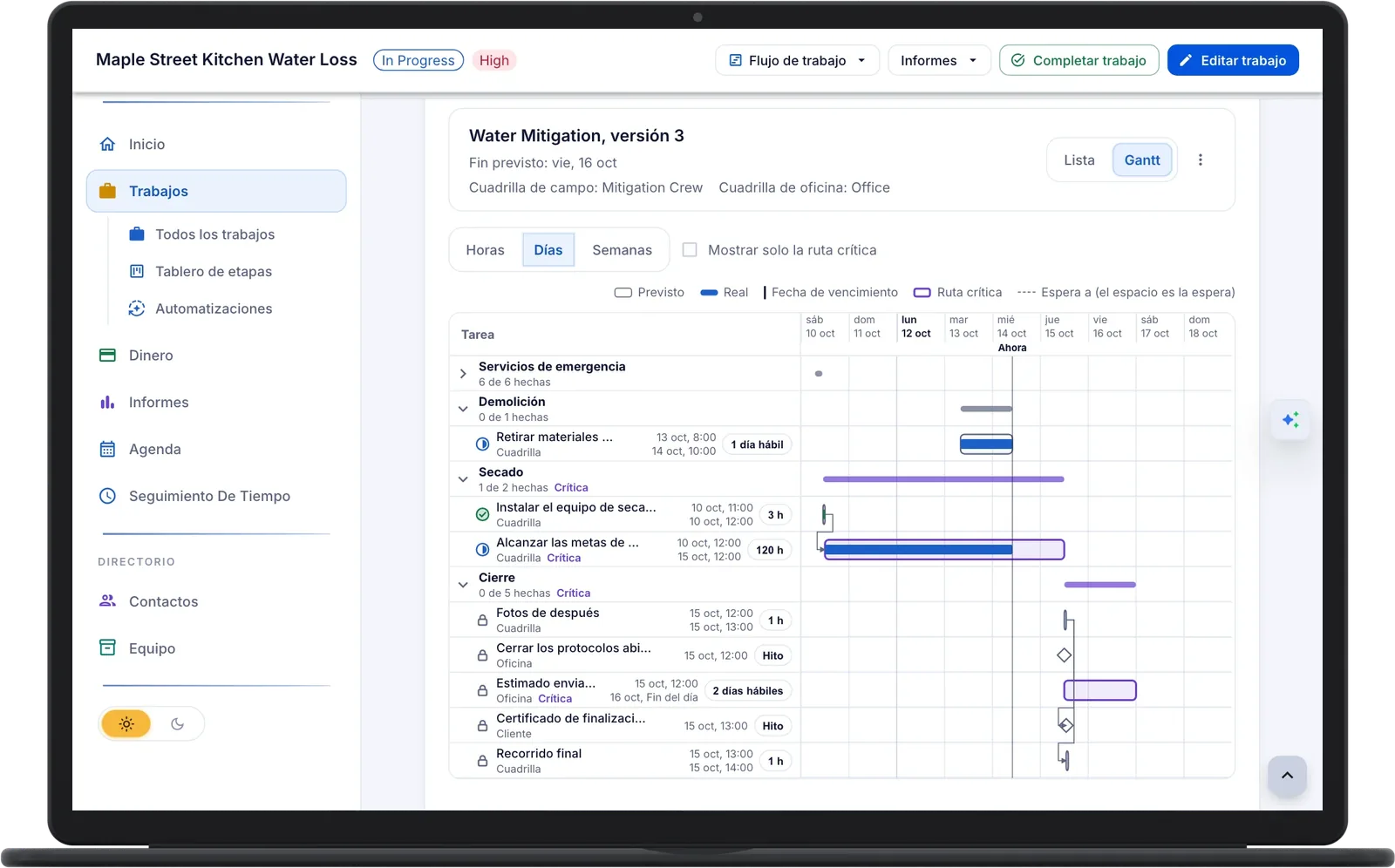
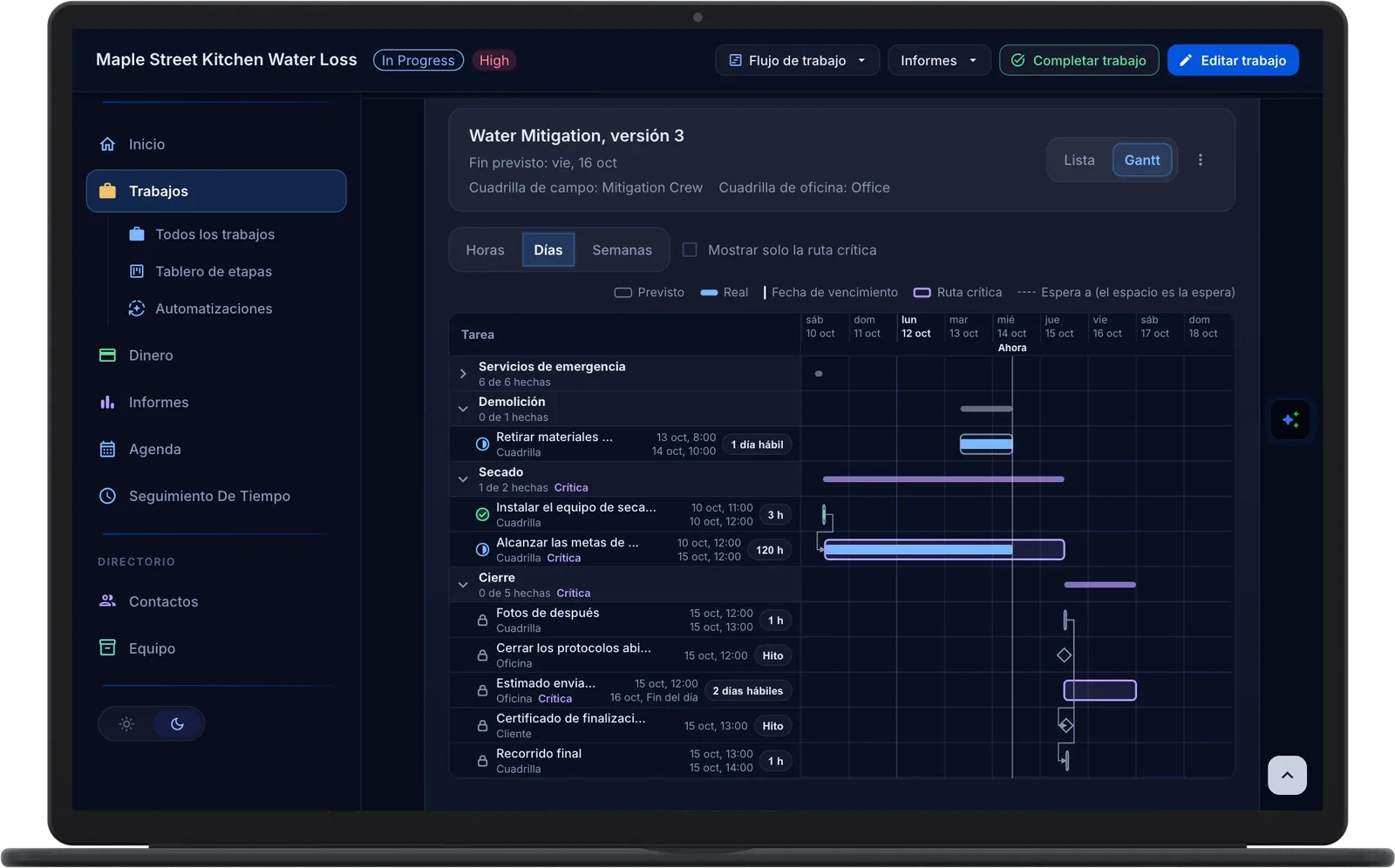
Each task has a duration in hours or work days, and a wait between tasks is part of the plan. The Gantt chart draws the plan against what actually happened, marks the critical path, and gives every job a projected finish that moves with the work.
Reach Dry Goals is on Maple Street's critical path at 120 hours, so the job is projected to finish Friday, October 16. If drying runs long, the finish date moves with it.
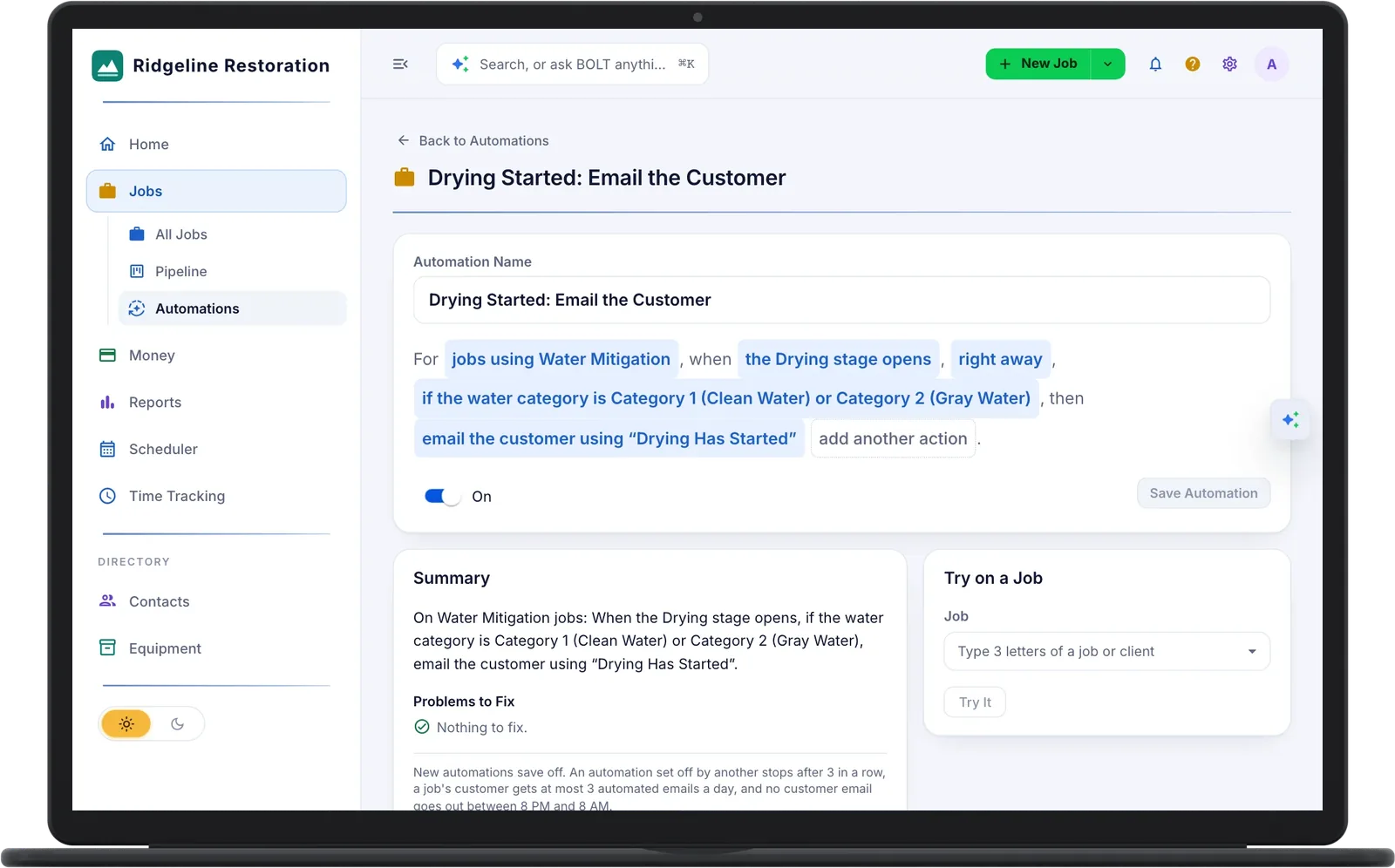
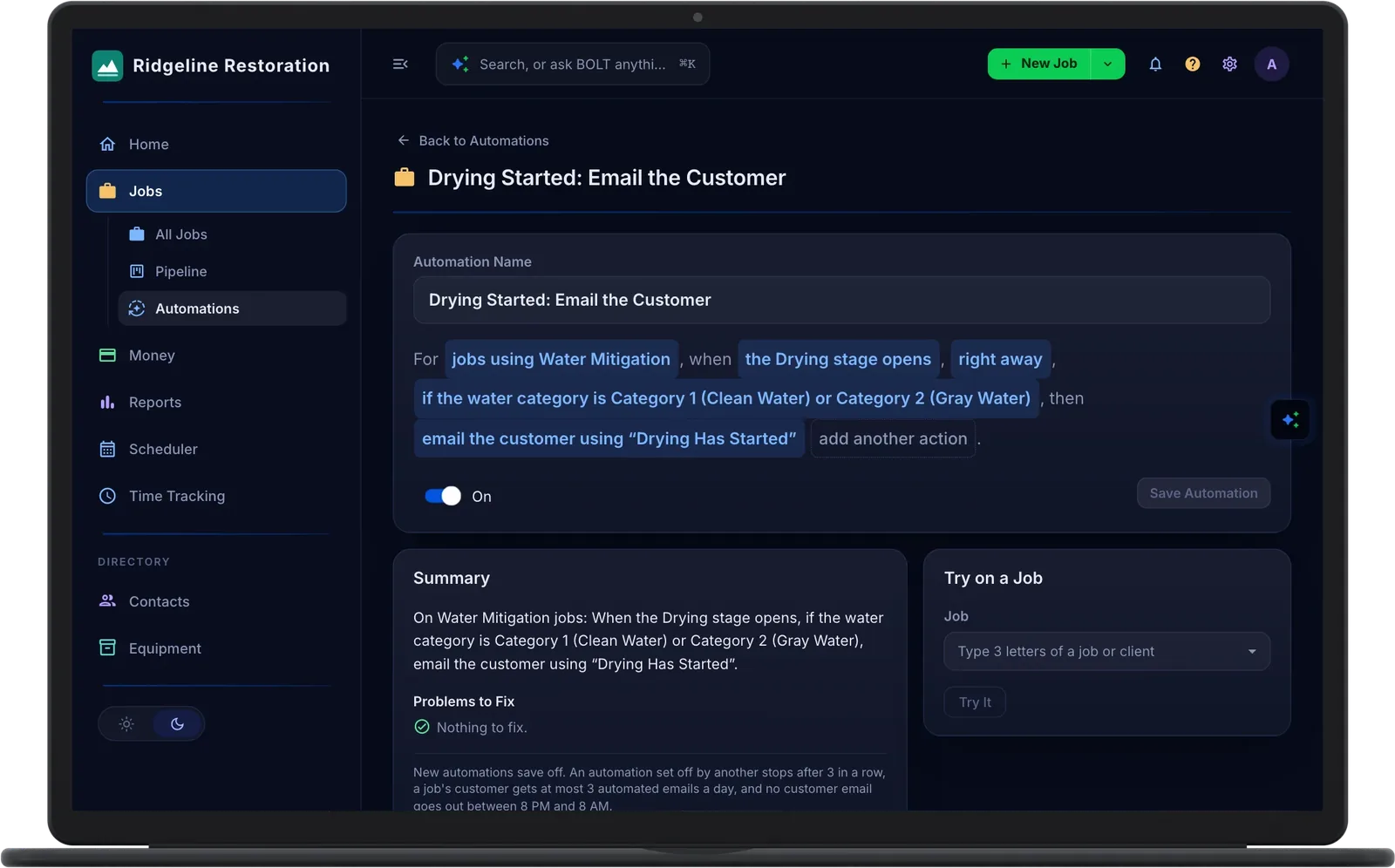
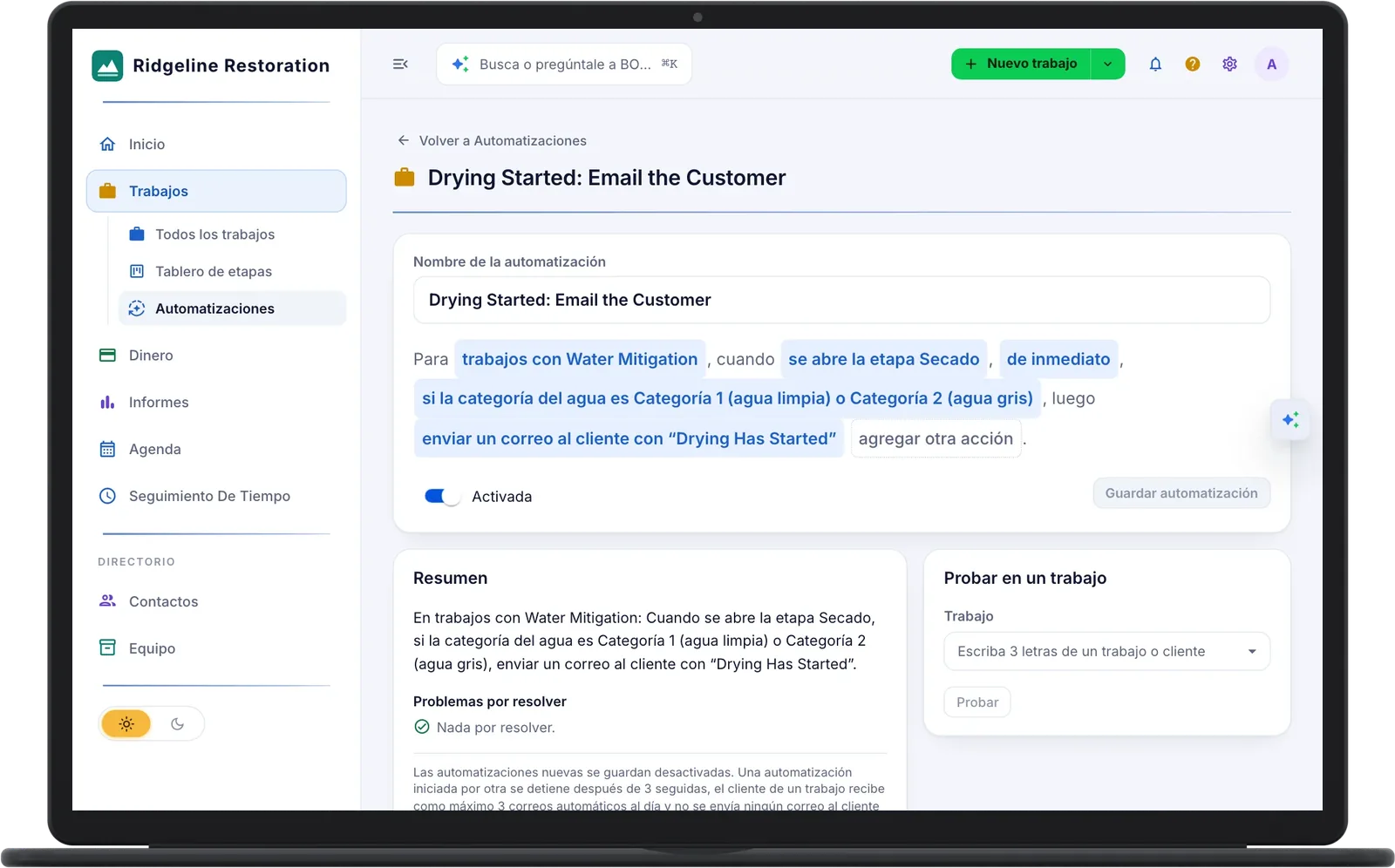
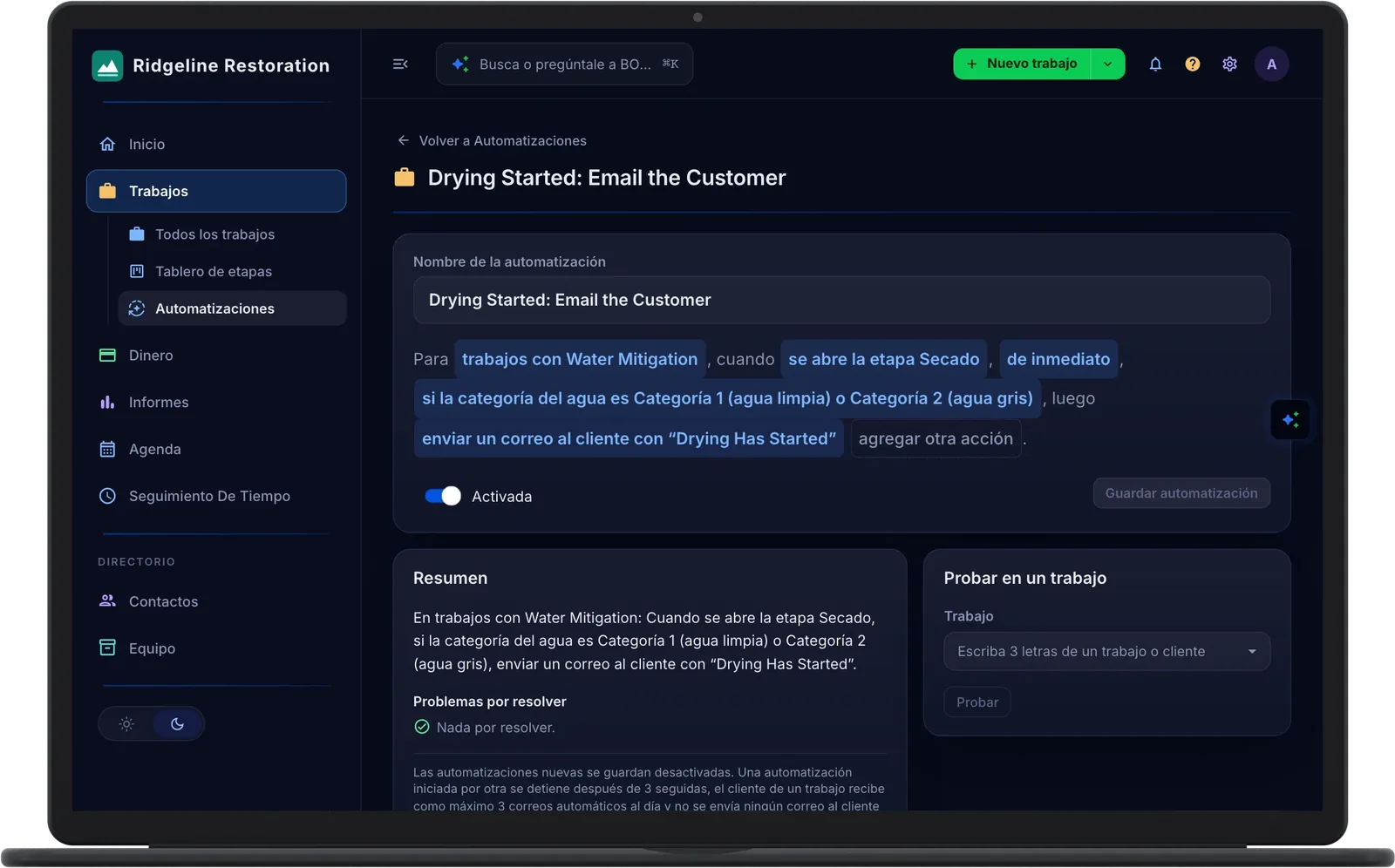
An automation reads as one sentence: when something happens on a job, if it still applies, do up to five things, from notifying a team or adding a task to emailing the customer. Start from a recipe, try it on a real job, and turn it on.
When the Drying stage opens on Category 1 or 2 water, the customer gets your "Drying Has Started" email. Tried on Maple Street, it fits, and it shows the email Maria Harper would get. Trying sends nothing.
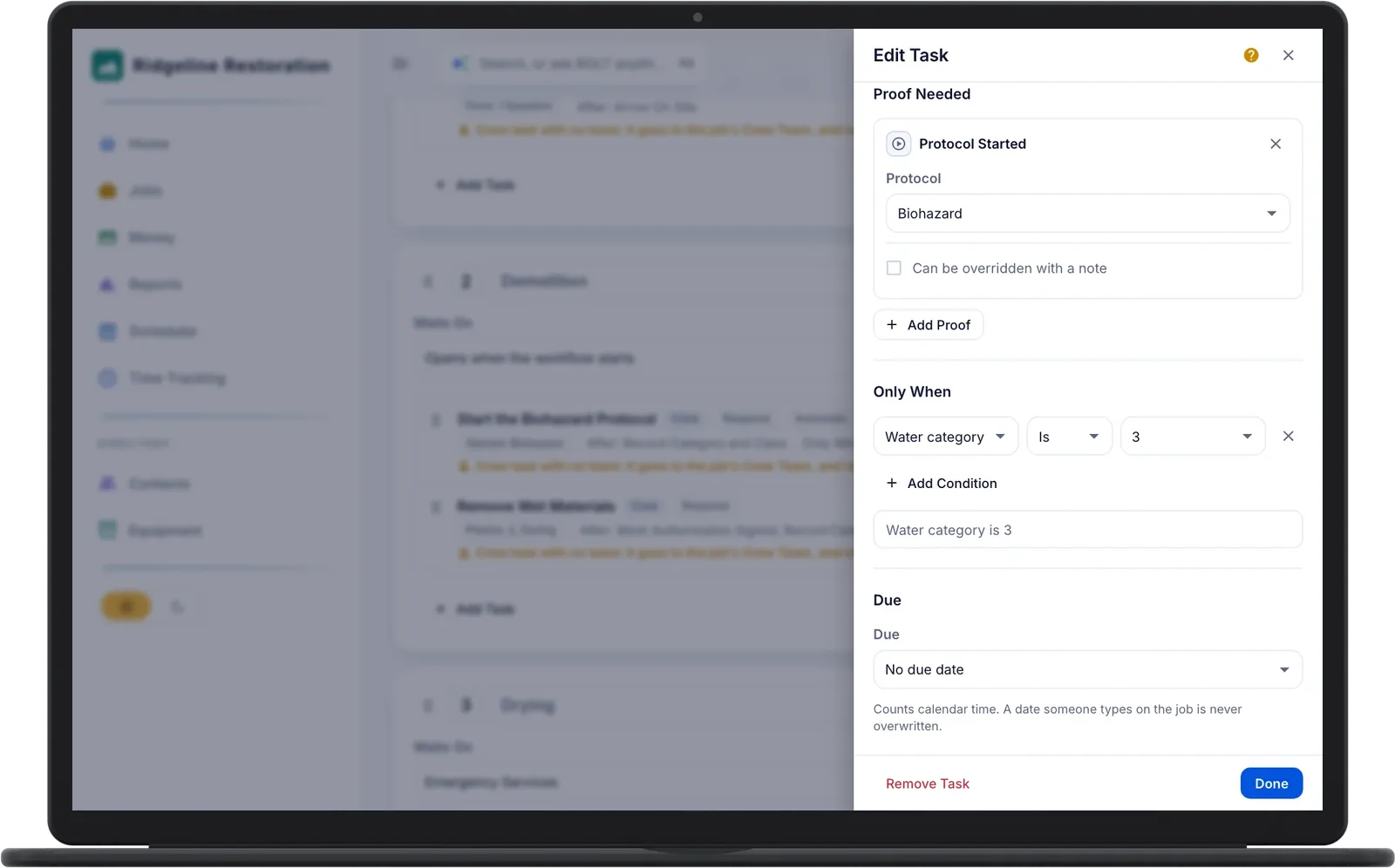
Drag stages and tasks into order, pick what each task comes after, add the proof it needs, and give a task a condition when it only applies sometimes. Every save is a version, and running jobs change only after you preview the update.
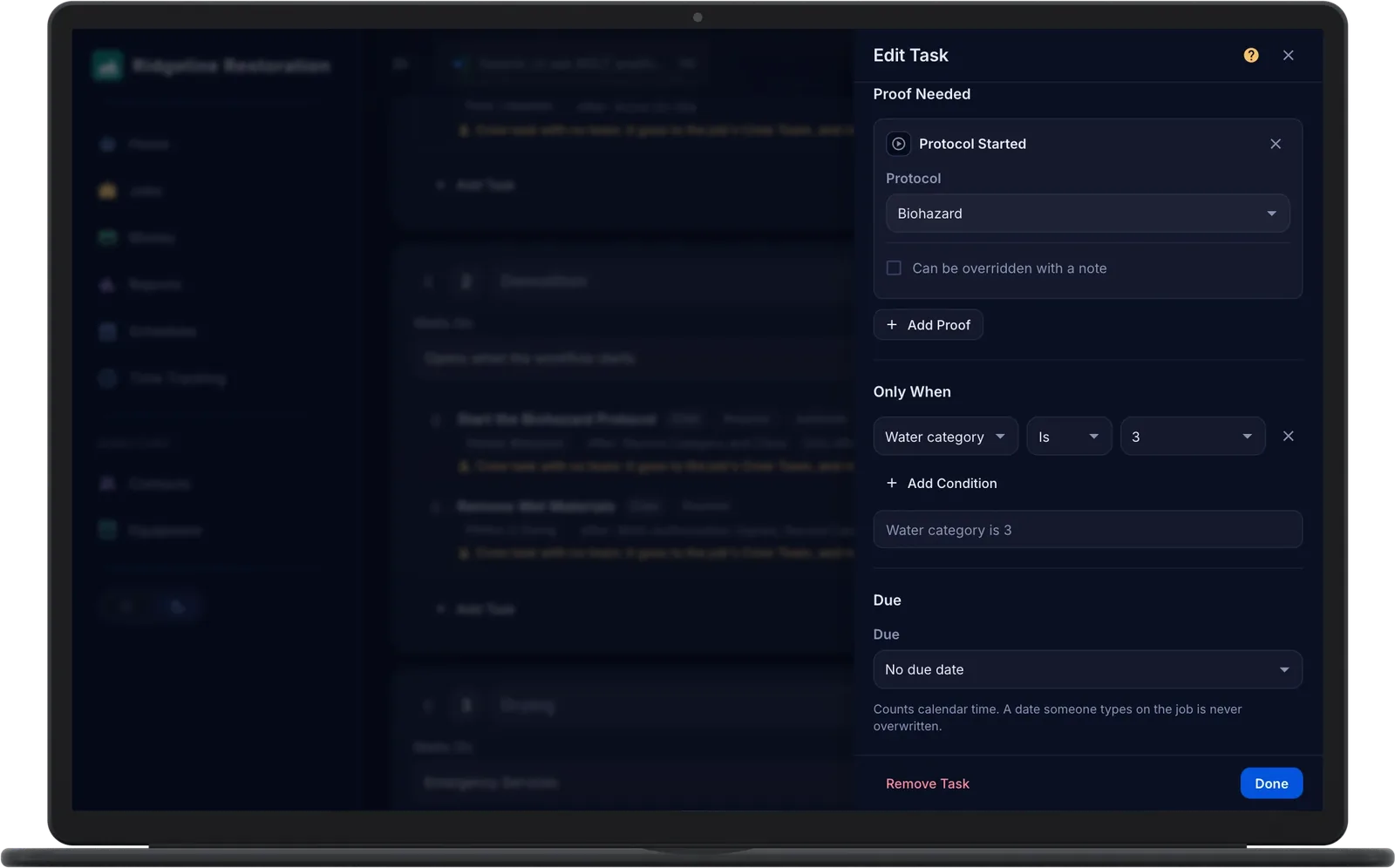
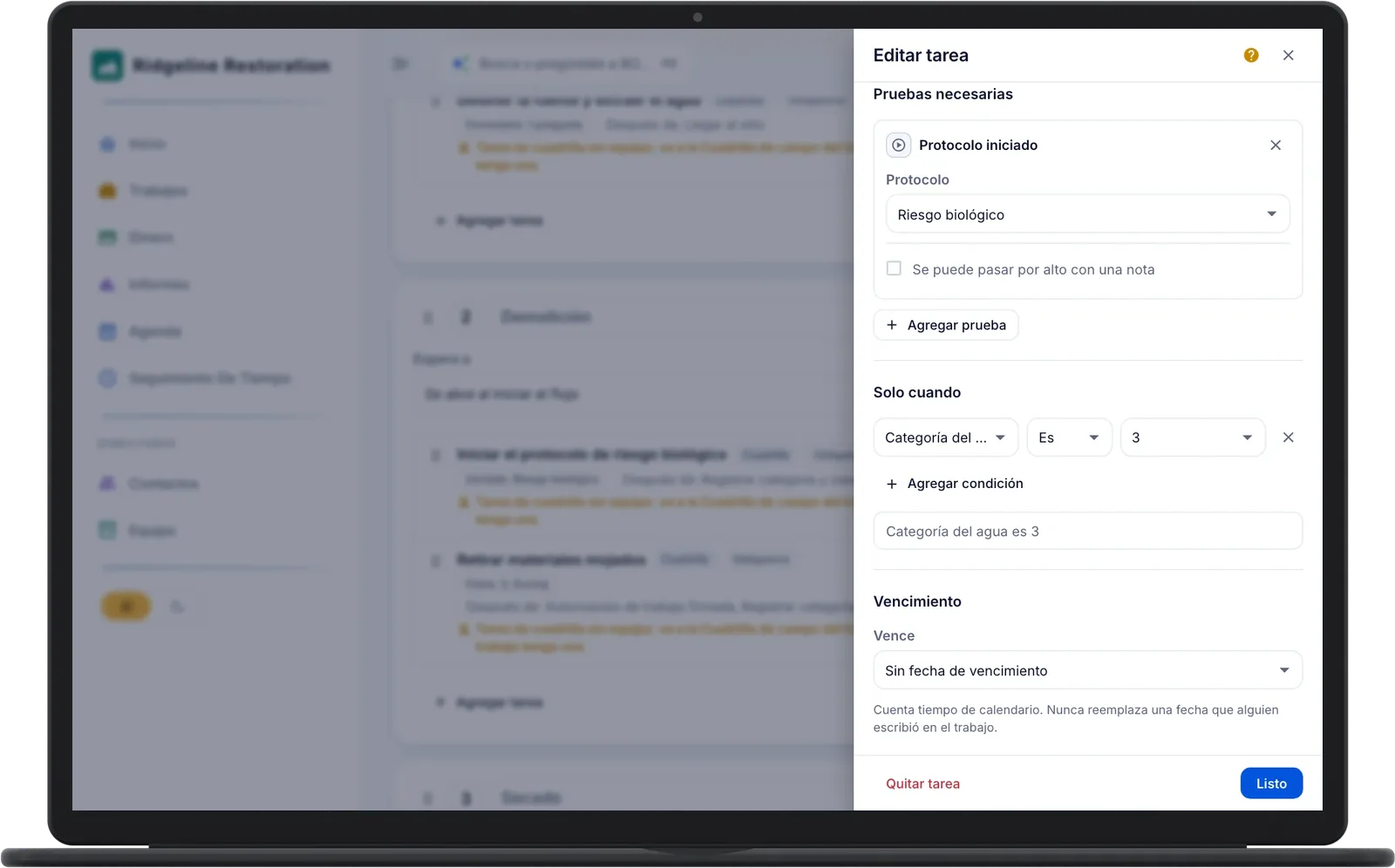
Start the Biohazard Protocol joins a job only when the water category is 3, and it completes on its own once the biohazard protocol is started.
- Automated Customer Emails. Messages you write, in English and Spanish, sent only with the customer's permission on record, at most three per job in 24 hours, and never between 8 PM and 8 AM.
- Automation Activity. Every run with each action's outcome and each email's delivery status.
- Automations. When this happens, if this is true, do up to five things, from a recipe library or built from scratch, tried on a real job before you turn it on.
- Conditional Tasks. A task joins a job only when a fact holds, such as Category 3 water adding the biohazard protocol.
- Default Workflows. A new job starts the workflow set for its job type, including a linked job such as a rebuild under its water job.
- Gantt Chart. Planned and actual bars, waits, milestones, and the critical path, with a projected finish date for every job.
- Hold, Skip, and Reopen. Put a task on hold with a reason, skip a task or the rest of a stage, and reopen with the impact shown first.
- Pipeline Board. Every job in its current stage with the next task, days in the stage, and projected finish, filtered by team or by who it waits on.
- Proof Before Done. Photos per room, forms, signed documents, protocols, finished drying, and claim milestones are checked before a task completes, and every override is recorded with its reason.
- Safe Template Updates. See what a change does to each running job, then update them or keep it for new jobs only. Finished work never changes.
- Waiting On. A blocked task names the task holding it up and whose move it is: crew, office, customer, or carrier.
- Workflow Tasks on the Phone. Crews see the tasks ready for them, finish with one tap and photo proof, put a task on hold with a reason, and keep working offline.
- Workflow Templates. Stages, the tasks in each, what each task comes after with an optional wait, durations, and due dates, with a version on every save.
See what every job really made.
See PricingAPI Access
Connect your own software to BOLT XLR with a credential you control, and choose whether it can change data or only read it.
- API Developers Guide. Every endpoint, the token request, headers, errors, and rate limits, in the app, with a copy button on every example and the whole guide as Markdown.
- Copy AI Prompt. Copy a ready-made prompt with your company's details and every endpoint, paste it into the AI assistant your developer uses, and it writes the connection. The prompt never holds a Client ID or Secret.
- Full or Readonly. API Full reads and changes jobs, customers and leads, scheduling, time, equipment, materials, files, templates, and workflows. API Readonly reads the same data and changes nothing.
- Off Limits by Design. No credential can manage people, roles, billing, or integrations, approve or sign off, or record a customer's signature. Both roles are built in and locked.
- One Credential per System. Give each program its own named credential, so you can cut one off without touching the rest. What it saves shows under its name, such as Accounting Sync (API).
- Regenerate or Revoke. An admin can do either at any time. The old secret, and every token issued with it, stops working within a minute.
- Secret Shown Once. Copy it when it is created. BOLT XLR keeps only a one-way hash, so no one can look it up later.
- Standard OAuth 2.0. The client credentials flow against your company's Token URL, so standard OAuth libraries work as they are. Each token lasts an hour.
Every plan includes every feature on this page.
Choose a PlanAsk BOLT AI
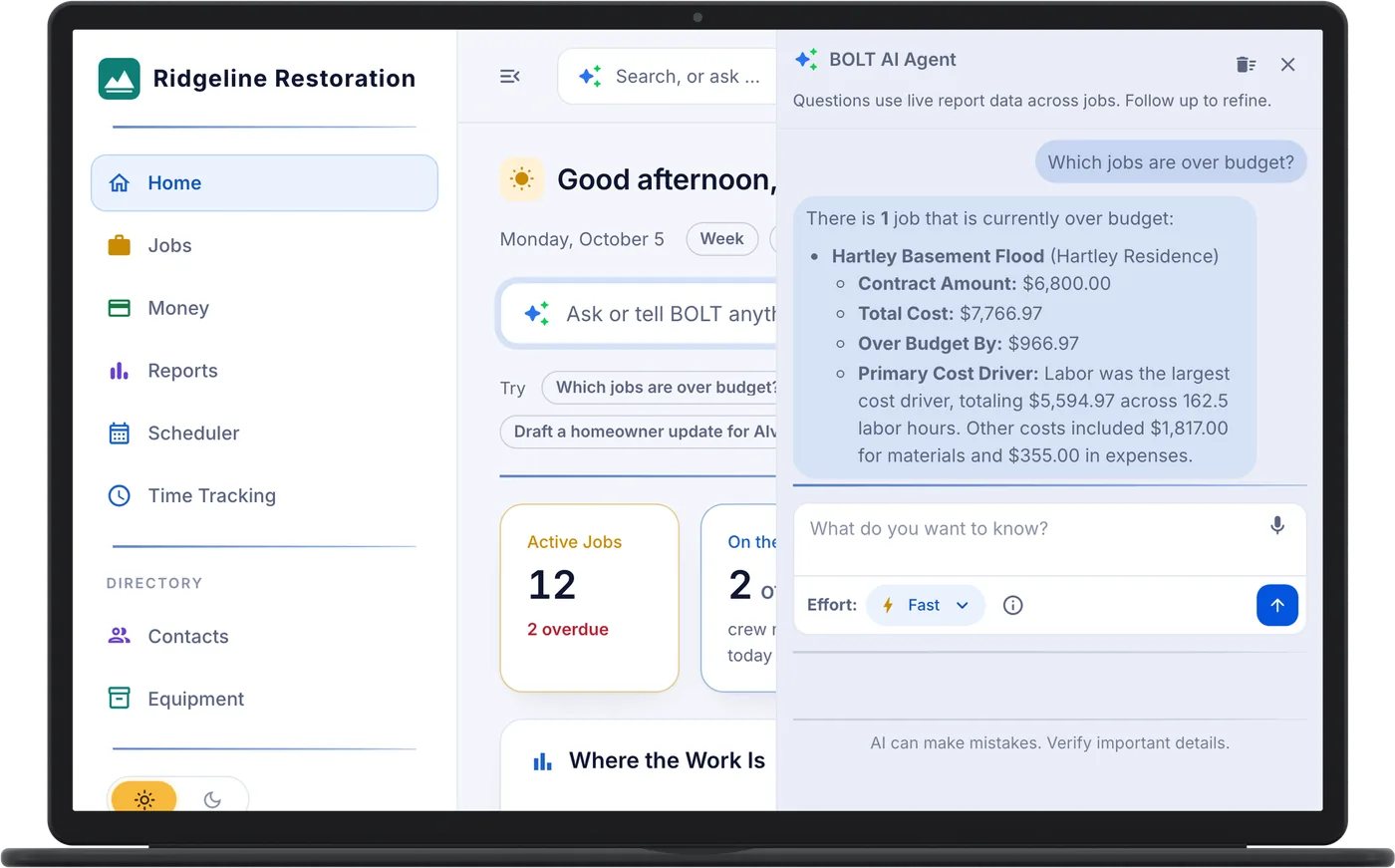
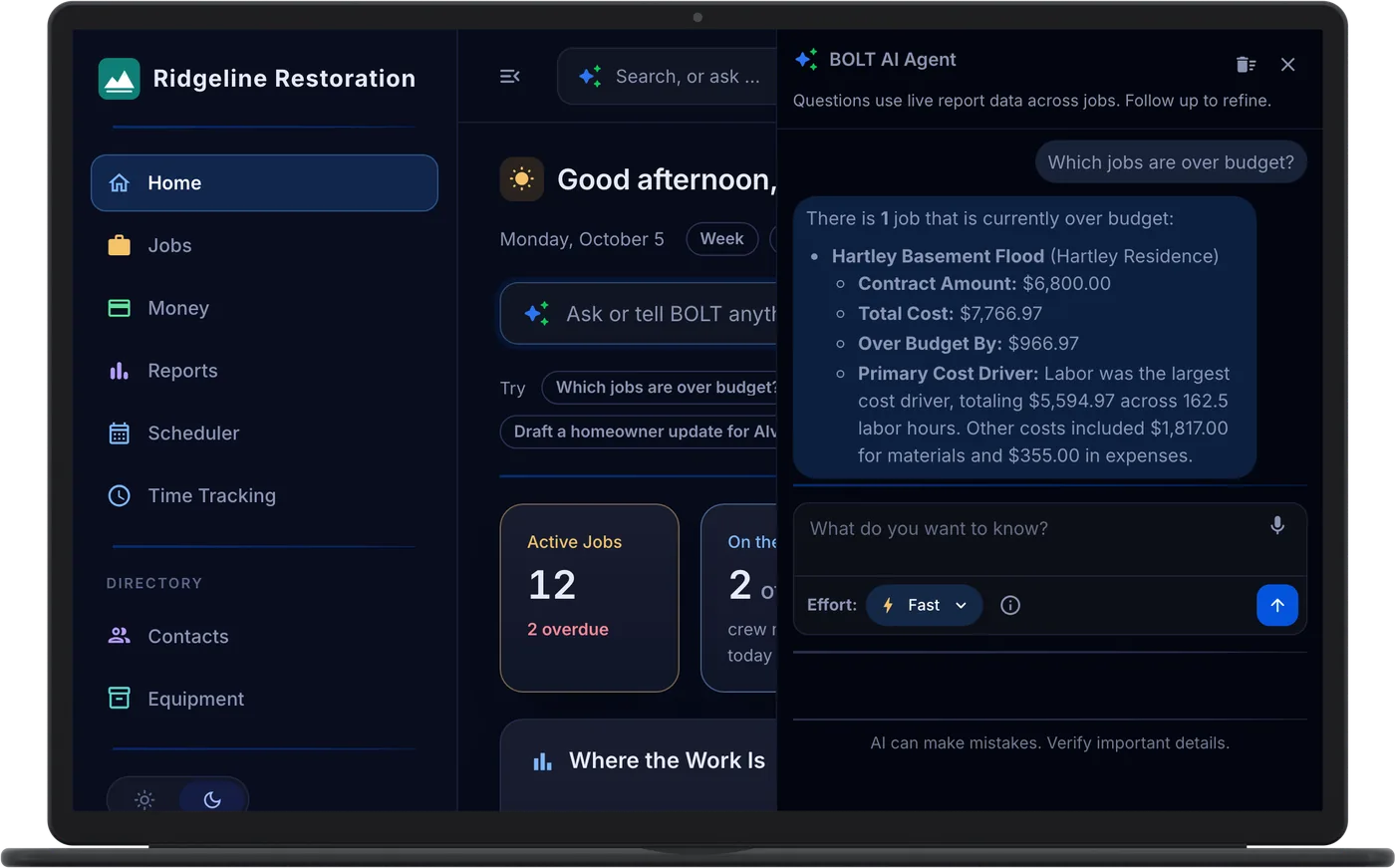
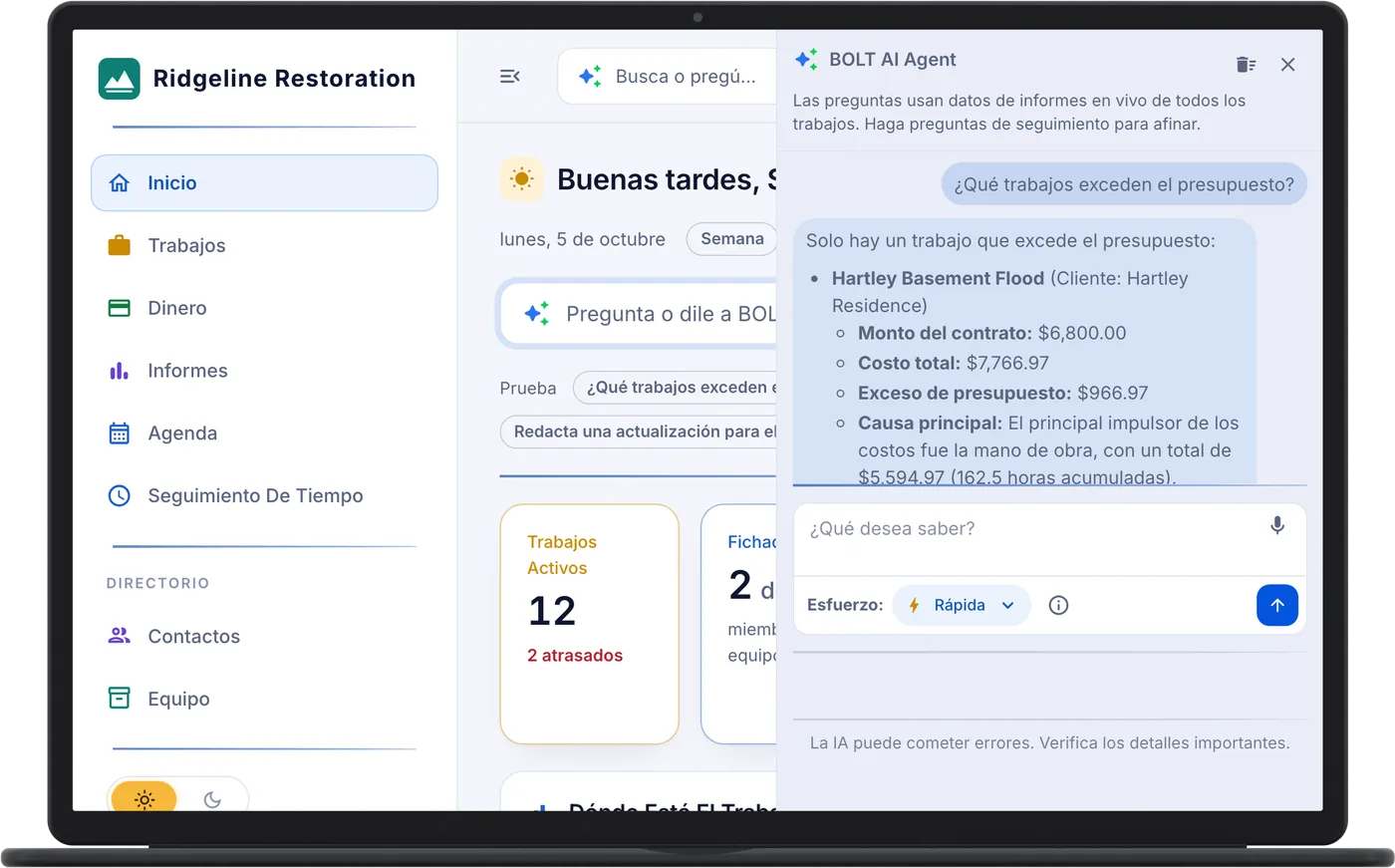
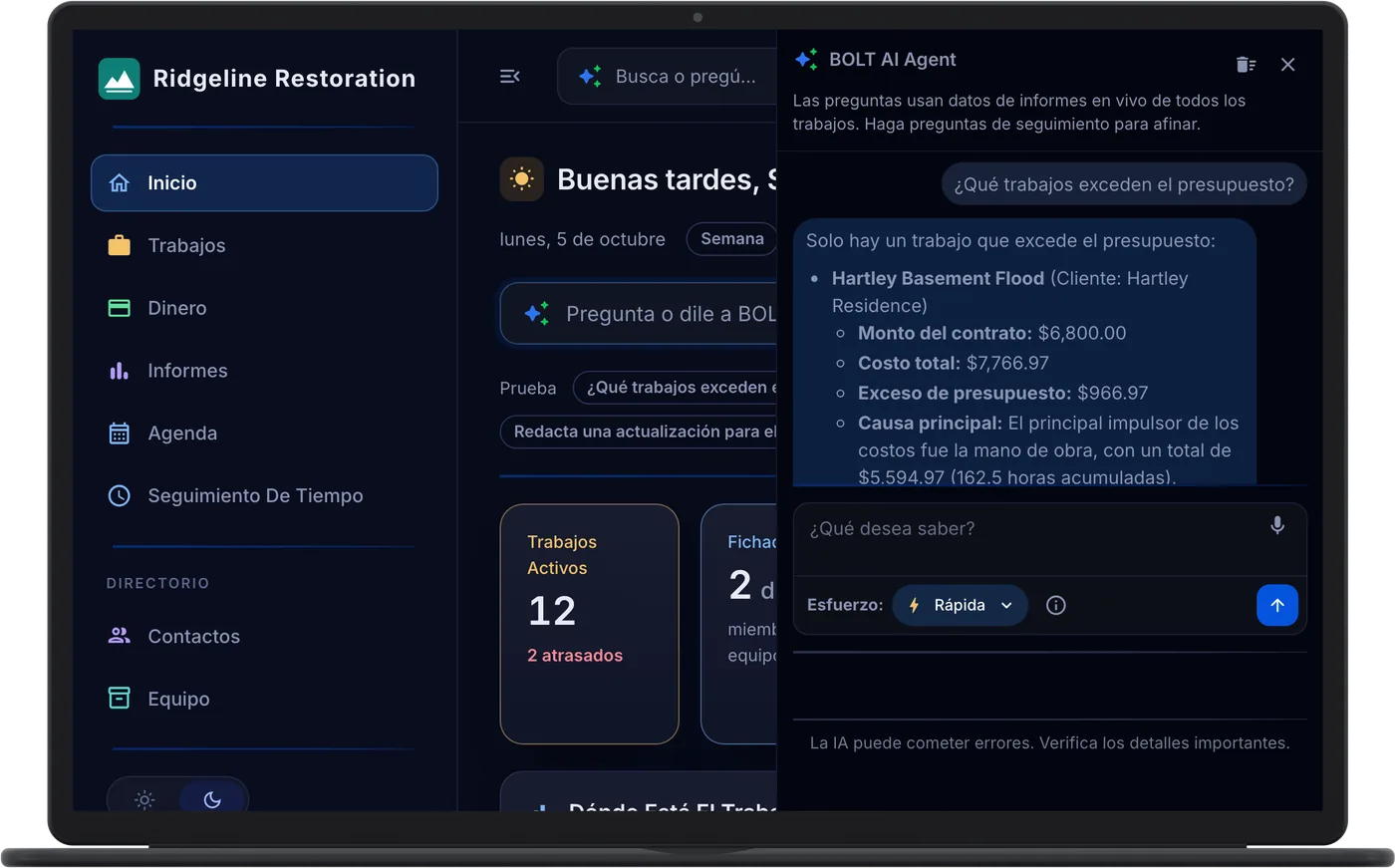
Add-OnAsk in plain English and the answer comes from your own data.
- AI Writing Help. Draft notes, task lists, quote line items, and report designs.
- Ask About Your Own Jobs. Questions over your jobs, crew, and money, answered with charts from Home, a job, Cmd+K, or the phone.
- Token Packages. Monthly packages shared across the team, with single-use top-ups and the balance shown in billing.
- Voice Dictation. Say the question instead of typing it.
Setup takes about a minute, and the first 30 days are covered by our money-back guarantee.
Get StartedCompanyCam Photo Sync
Photos your crews take in CompanyCam land on the right job, filed by the tags they already use.
- Earlier Photos and Videos. Bring in what was taken before the job was linked, and videos too if you want them.
- Filed by Tag. A tag that names one of the job's areas files the photo there, and tag rules can set the area and photo category.
- Filter by Source. Show everything, only CompanyCam, or only what was added in BOLT XLR.
- Job Numbers and Archiving. Put the job number in new project names, and archive the project when the job is completed.
- New Photos Come In on Their Own. A photo taken in CompanyCam is copied to its linked job, and a daily check catches any that were missed.
- One Project per Job. BOLT XLR creates a project when a job is created, matches one by service address, or waits for someone to pick one. You choose.
- Who Took It and When. Each photo carries a CompanyCam badge with the person who took it and the time, in the List and By Area views.
- Your Photos Stay in CompanyCam. Photos are copied, so they stay in CompanyCam too, and BOLT XLR never deletes your photos or projects there.
See what every job really made.
See PricingCosts and Money Owed
Every cost lands on its job, and only approved costs count.
- Expenses with Receipts. Techs submit with a receipt, a manager approves or rejects, and approved costs post to the job.
- Job Materials. Materials per job with status and a summary.
- Job Profitability. Paid revenue against labor, materials, expenses, subs, and mileage, per job and across the book.
- Mileage. Odometer trips or manual entries at your company rate, with approval.
- Money Owed. Receivables and payables by age: Current, 1-30, 31-60, 61-90, and 90+, with drill-down, CSV, and print.
- Vendors and Bills. Bills per job with material lines, from unbilled to open to paid, plus an accounts payable register.
Customers and Leads
From the first call to the referral partner who sent it.
- Clients. One record per customer with a feed of jobs, quotes, invoices, documents, and notes.
- Crew Handoff. Assign a crew, the crew accepts or declines from the phone, and your escalation team is alerted if nobody answers.
- Customer Emails. A request-received acknowledgment and job status updates in English or Spanish, with consent and unsubscribe.
- Customer Portal. A private link, revocable at any time, where the homeowner checks status and schedule.
- Lead Routing. Coverage areas by postal code, routing rules by priority and loss type, crew availability, response targets, and alerts.
- Leads. Intake with callback time, emergency priority, loss details, insurance flag, a contact log, and conversion to a job.
- Referral Partners. A directory with leads, conversions, closed jobs, and conversion rate per partner.
- Xactimate ESX Files. Attach and download ESX estimate files on a lead.
Every plan includes every feature on this page.
Choose a PlanEmail: Gmail and Outlook
Mail with clients, adjusters, and carriers lands on the right job, and every reply goes out from the right mailbox.
- Email on Every Job. Read each conversation, then Reply, Reply All, Cc, Forward, or start a new email with files from the job attached.
- Files Saved to the Job. Attachments are virus-scanned and filed under the photo or file category you choose.
- Matched to the Right Job. By thread, claim number, policy number, sender, service address, or job number, on open jobs only.
- New Mail Alerts. The people assigned to the job and the person who created it hear when mail lands, if they can read it.
- Personal and Shared Mailboxes. Each person links their own Gmail or Outlook, and admins connect shared inboxes such as claims@ and office@.
- Sent From the Right Mailbox. A reply goes out from the shared inbox the conversation came through, or from your own mailbox.
- Unmatched Mail. Mail that fits no job, or more than one, waits with the reason. Place it on a job, start a lead from it, or ignore the sender.
- Your Mail Stays Yours. Bring in only mail with people in BOLT XLR, skip mail labeled Personal, or keep it to you and admins. Nothing in a mailbox is deleted, moved, or marked.
Can your crew meet me Thursday at 10 to walk the kitchen? Please bring the latest moisture map.
scope-notes.pdf Saved to FilesThursday at 10 works. Dana Ortiz will meet you on site with the moisture map.
Setup takes about a minute, and the first 30 days are covered by our money-back guarantee.
Get StartedEquipment
Every unit shows where it is until it is scanned back onto the van.
- Adjust Equipment Times. Correct placement and return times with a reason on record.
- Drying Equipment Specs. Drying role and rated PPD and CFM per unit.
- Equipment List. Status of In Warehouse, On Truck, On Job Site, or Returned, with type, serial number, and filters.
- Forgotten Gear Alert. A job cannot close while equipment is still on site unless someone with permission to force completion overrides the check.
- Load, Place, and Return by Scan. Scan onto the van, onto the job by room, and back, with duplicate and unknown scans flagged.
- QR Codes and Labels. A QR code per unit, printed on Avery label sheets.
See what every job really made.
See PricingGoogle Calendar Sync
Scheduled work lands on each person's Google Calendar, and their busy times show on the dispatch board.
- Assigned Work on Calendars. Scheduler events and task due dates go on the assigned person's Google Calendar, and team work goes on every member's.
- BOLT XLR Stays in Charge. Edits made in Google Calendar never move anything in BOLT XLR, and turning sync off removes the events it added.
- Busy Times on the Dispatch Board. Each linked person's busy times show as read-only blocks in their lane, never with the event's title.
- Google Workspace or One by One. A Workspace admin authorizes BOLT XLR once for everyone, or each person links their own calendar in Preferences.
- Separate Jobs Calendar. Put events on a BOLT XLR Jobs calendar people can hide or recolor, or on each person's main calendar.
- Who Has Linked. A People list with each person's status, and reminders or invites for anyone not linked.
- You Choose What an Event Says. Customer name, service address, and a link back to the job. Gate codes and access notes stay off unless you turn them on.
Every plan includes every feature on this page.
Choose a PlanInteractive Help System
Click on the in the top navigation bar to display help icons for each field.
- Field Help on Every Form. An amber question mark beside each field label opens what the field is for, whether it is required, and an example value.
- Help in Every Dialog. Forms that open in a window carry their own help button, so the explanation is there too.
- Screen Introductions. Lists, boards, and job tabs open with a short note on what the screen is for.
- Walk Me Through. Steps a form one field at a time, so a new hire can finish it without stopping to ask.
- Written From the Users Guide. Each explanation comes from the guide chapter for that area and is checked against the form's own rules.


Setup takes about a minute, and the first 30 days are covered by our money-back guarantee.
Get StartedInvoicing and Payments
Collect before you leave, or send the invoice and watch it get paid.
- Collect Now by Card. Take a card payment on the spot through Stripe.
- Invoice by Email. A hosted invoice link the customer pays online.
- Manual Invoices and Payments. Record cash, check, ACH, or a card taken elsewhere, with void and reopen.
- Pay or Record on the Phone. Collect a card payment or record one from the job on the phone.
- Percent-of-Balance Invoicing. Bill a percentage of the remaining balance at each stage.
- Sales Tax on Invoices. Tax is calculated on the invoice for you.
Jobs
One job page holds everything from the first detail to the final margin.
- Insurance Claims. Carrier, adjuster, policy, deductible, milestones, and supplements stay on the job.
- Job Completion Checklist. A job cannot close while equipment is still out, a protocol is still open, or a required workflow task is unfinished, unless someone with permission to force completion overrides the check.
- Job List and Job View. Active, inactive, and all jobs with search, and one page per job with every section from details to profitability.
- Job Lists and Templates. Edit the dropdown values your company uses and keep Markdown templates for job descriptions.
- Linked Jobs. Contract, revenue, cost, hours, and tasks roll up from linked jobs to a master job.
- Printable Job Reports. Job report, payment summary, invoice, quote, change order, and document as print or PDF.
- Sub-Contractor Work Orders. Work orders per sub with contract value, house margin, and a financial summary per job.
- Tasks. Assign tasks to techs or teams with priority and status, or draft the list with AI.
See what every job really made.
See PricingMobile and Tablet Apps
Built for the crew, on iOS and Android, with or without a signal.
- Barcode and QR Scanning. QR, Code 128, EAN-13, and Data Matrix with the camera.
- English and Spanish. Pick a language or follow the device setting.
- Office Tools in the Field. Approvals, quotes, bills, money owed, and profitability from the phone.
- Photos and Video. Capture by room and category, with the location recorded when you allow it.
- Push Notifications and Inbox. Signed documents, quote answers, change order answers, and lead assignments.
- Signatures on the Phone. Documents and change orders signed on the spot.
- Works Offline. Assigned jobs, tasks, the time clock, drying and protocol logs, and leads keep working and sync when you are back online.
QuickBooks Online
The books stay current without retyping anything.
- Connect and Map. Sign in with Intuit, map accounts, items, and expense categories, and pick a start date.
- Paid Status Back. A manual invoice paid in QuickBooks shows as paid in BOLT XLR. A Stripe invoice paid there is flagged for you to record.
- Scheduled Sync. Every 15 minutes: customers, vendors, invoices and their payment once paid in full, bills, and approved expenses.
- Sync History. Every run on record, with an attention list of anything QuickBooks rejected.
Every plan includes every feature on this page.
Choose a PlanQuotes and Documents
Paperwork the customer signs from a link, with the signed copy saved to the job.
- AI Quote Drafting. Generate the line items from a description, then edit them.
- Change Orders. Photos, a reason, and schedule days, signed by the customer on a public page, with the signed PDF saved to Files.
- Document Templates. Markdown templates with merge fields, with a Work Authorization and a Certificate of Completion included.
- E-Signature Documents. Build from a template, sign in person or by emailed link, print, or void.
- Line-Item Quotes. Material, task, and other lines with an expiration date, sent by email as a link.
- Online Accept or Decline. The customer answers from the link with no login, and an accepted quote becomes a job.
Reports and Exports
The numbers you need, on the dashboard or in a file.
- CSV Exports. QuickBooks time, job cost summary, job expenses, and mileage.
- Home Dashboard. Active jobs, crew on the clock, equipment out, revenue and profit, approval queues, and today's schedule.
- Report Builder. Design your own reports over jobs, leads, quotes, and users with summaries, formulas, filters, and an AI designer.
- Reports on the Phone. Saved reports open as read-only tables in the field.
- Saved Reports. Print with runtime filters and limit each report to the roles that should see it.
Setup takes about a minute, and the first 30 days are covered by our money-back guarantee.
Get StartedRestoration Documentation
Every moisture point has its place on a floor plan of the job. Set up the drying once, walk the points on the phone each day, and watch the plan go from wet to dry. The Drying Report carries it all, with the mold, fire and smoke, and biohazard records beside it.
- Points Dry5 of 72 points still wet
- Chambers1Every chamber has a class
- Last VisitOct 143 visits, by Dana Ortiz
- Grain Depression14.2 gppAt least 12 grains
Every point says where it stands:
- Wet
- Dry
- Reference
- Removed
- No reading
Wet means the reading is above the point's dry goal. A point turns Dry the day it reaches its goal, and the log marks that day with a D. A reference point sits on dry material and sets the goals, so it is never wet or dry.
Group the wet rooms that share air into a chamber with its water class, size each room, and add a moisture point wherever the meter goes. Each point gets a material and a dry goal, set by a reference reading on dry material or by your company's numbers.
At Maple Street, the Kitchen and Dining chamber is Class 2. Point 2, the kitchen's east wall at 12 inches, is drywall with a goal of 11: the dry reference wall in the living room reads 9, plus your tolerance of 2.
Arrange This Job's Rooms lays out the rooms Drying already knows, at their sizes, level by level. You can also trace a photo of a hand sketch or a PDF page, setting the scale from one wall you measured, or draw on an empty grid. The phone offers the same choices, and arranging and drawing work without signal.
Maple Street had six rooms, and five already had sizes from Drying, so they dropped in at scale. The hall came in as a 10 by 10 ft square marked Not measured, ready to size.
Drag the rooms into place and they snap to each other's walls. Add doors, windows and labels, then pin the job's own moisture points and placed equipment where they are. A room's size on the plan is the size Drying uses, so a change in one place changes both, and every change saves itself.
Dana pinned points 2, 3 and 4 in the kitchen with two air movers and the dehumidifier. Setting the kitchen to 14 by 12 ft here gave Drying its 1,344 cu ft for the equipment calculator.
On the phone, the Daily Check takes the readings one point at a time, reference points first, on a big keypad. When the screen has room, a plan of the room sits above the keypad with a ring on the point you are on, so the crew finds the spot on the wall. It all works without signal and uploads once the phone has one.
Day 3: point 3, the subfloor at the sink, reads 19 against a goal of 15, down from 27 the day before, so it stays Wet. Next Point moves the ring to point 4.
The floor plan opens as a moisture map. Pick a day of the log and every pin shows that day's reading, a filled disc when wet and a ring when dry, with the wet and dry counts beside the days. The table next to it says the same in words, and a click on a pin opens the point in Drying.
On Oct 14, Day 3, two points are still wet, both in the kitchen. Two days earlier, all seven were.
The Drying Report puts the loss details, chambers and rooms, the equipment calculator, a moisture map page for each level, the moisture and atmospheric logs, the charts, the equipment days and the photos in one printable file. Pick the map day before you print, and export the equipment days to CSV for your estimate.
Maple Street's report prints Moisture Map: Main Floor for Oct 14 (Day 3) just before the Moisture Log, with the claim number and the carrier from the job's insurance claim at the top.
- Billable Equipment Days. Days per type, room, and chamber, exported to CSV for the estimate.
- Biohazard Protocol. Scene facts, zone entry log, disinfectant applications with EPA numbers, removals, waste pickups, ATP clearance, and sensitive photo handling.
- Daily Check on the Phone. Readings one point at a time with the room's plan above the keypad, plus the air readings, the equipment count, and photos, with or without a signal.
- Drying Logs. Chambers, rooms, reading points with dry goals, a daily log, atmospheric readings with grain depression, trend charts, and a printable Drying Report.
- Equipment Sizing Warnings. Placed equipment is checked against the size of the chamber.
- Fire and Smoke Protocol. Rooms, checklist, equipment days, sign-off, and a printable report.
- Floor Plans. Rooms, doors, windows, and labels level by level, started from the job's rooms, a traced photo or PDF, or an empty grid, with room sizes shared with Drying.
- Moisture Map. Each point's reading on the plan for the day you pick, with wet and dry counts, a table of the same readings, and a page per level in the Drying Report.
- Mold Remediation Protocol. Plan, containment zones with pressure checks, checklist, clearance rounds, and a printable report.
- Protocol and Drying Settings. Edit step lists, drying defaults, mold numbers, ATP pass levels, the disinfectant library, and sign-off templates.
- Rooms and Photo Tags. Areas by room with categorized photos in a per-room grid.
See what every job really made.
See PricingScheduling and Dispatch
Every tech sees their day on the phone before they leave the house.
- Custom Events. Drag, resize, and assign events with notes to techs or teams.
- Dispatch Board. One week at a time with a lane per tech or team and an unassigned lane.
- Scheduler Calendar. Month, week, and day views with quotes, jobs, task deadlines, and custom events.
- Teams. Named crews that take tasks, events, and routed leads.
Team and Security
Your own database, your own roles, and your data when you leave.
- Command Palette. Cmd+K jumps anywhere in the app.
- Company Branding. Your logo and name in the sidebar and browser tab.
- Custom Roles. A permission matrix across more than 30 areas, with roles that add up.
- Data Export After Cancellation. A full archive of your data is available for 30 days.
- Money Visibility. Only admins and the roles you choose see amounts and margins.
- Notifications. In-app, push, and email, with per-user preferences.
- Self-Service Subscription. Change plan, add users, storage, or AI packages, and open the billing portal.
- Sign-In Options. Email and password, email link, Google, and Apple on iOS.
- System Status Page. Backend, web app, and website health in the open.
- Users and Seats. Profiles, administrator access, activate or deactivate, and pay type on each user.
- Virus-Scanned Uploads. Every file is scanned for malware before anyone can open it.
- Your Own Database. Every company gets its own database, encrypted in transit and at rest.
Every plan includes every feature on this page.
Choose a PlanTime Tracking
Hours clocked on site land on the job as labor cost.
- Hours as Labor Cost. Total hours, daily average, and typical clock times on every job.
- Office Time Ledger. Entries grouped by day with a shift bar, map pins, notes, and add or edit.
- Phone Punch Clock. Clock in and out on the phone with the location stamped, with or without a signal.
- Push Time to QuickBooks. Send time entries one at a time or in bulk once users are linked to QuickBooks employees.